From zero to the scoreboard
You play on an Autodarts board and have never used Home Assistant? This guide takes you from nothing to the scoreboard on a tablet next to your board. Home Assistant, HACS and the integration are free. Plan about an hour; most of it is setting up Home Assistant itself.
On this page: What you need · 1. Install Home Assistant · 2. Install HACS · 3. Install the integration · 4. Add your board · 5. Create the dashboard · 6. Put the scoreboard next to the board · 7. Play your first game · What next · If something doesn't work
What you need
- Your Autodarts board, set up and working. Supported devices lists the tested setups. No Autodarts? Play without Autodarts on any dartboard, entering your darts on a keypad.
- A device for Home Assistant that stays on, in the same network as the board: a Raspberry Pi 4 or 5, a mini PC, or a virtual machine on a computer that runs all the time. Home Assistant also sells ready-made devices. Use a device of its own: the board PC needs its power for the detection.
- A free GitHub account, which HACS uses to download integrations.
- A screen for the scoreboard, if you want one: a tablet, a TV with a browser or an old phone.
1. Install Home Assistant
Follow the official installation guide for your device; it shows every step with pictures. On a Raspberry Pi, choose Home Assistant OS (guide for the Raspberry Pi).
At the end, open Home Assistant in a browser, usually at http://homeassistant.local:8123, and create your account. The onboarding guide explains the questions.
2. Install HACS
HACS is the store for integrations and cards from the community, like this one. Follow the official guide to download HACS and to set it up with your GitHub account. Afterwards, HACS appears in the sidebar of Home Assistant.
3. Install the integration

- Select the button above and confirm your Home Assistant address. HACS opens this integration. Without the button: open HACS, the menu (⋮) → Custom repositories, add
https://github.com/Dennis-Otto/ha-autodartswith the type Integration. - Select Download.
- Restart Home Assistant: Settings → System, the power button at the top right, Restart Home Assistant.
4. Add your board

With Board Manager 2, Home Assistant usually finds the board by itself: Settings → Devices & services shows Autodarts board found under Discovered. Select Add and confirm.
Otherwise, select the button above and choose Search for boards on this network, or Enter board address with the IP address of the board PC. You need no Autodarts account.
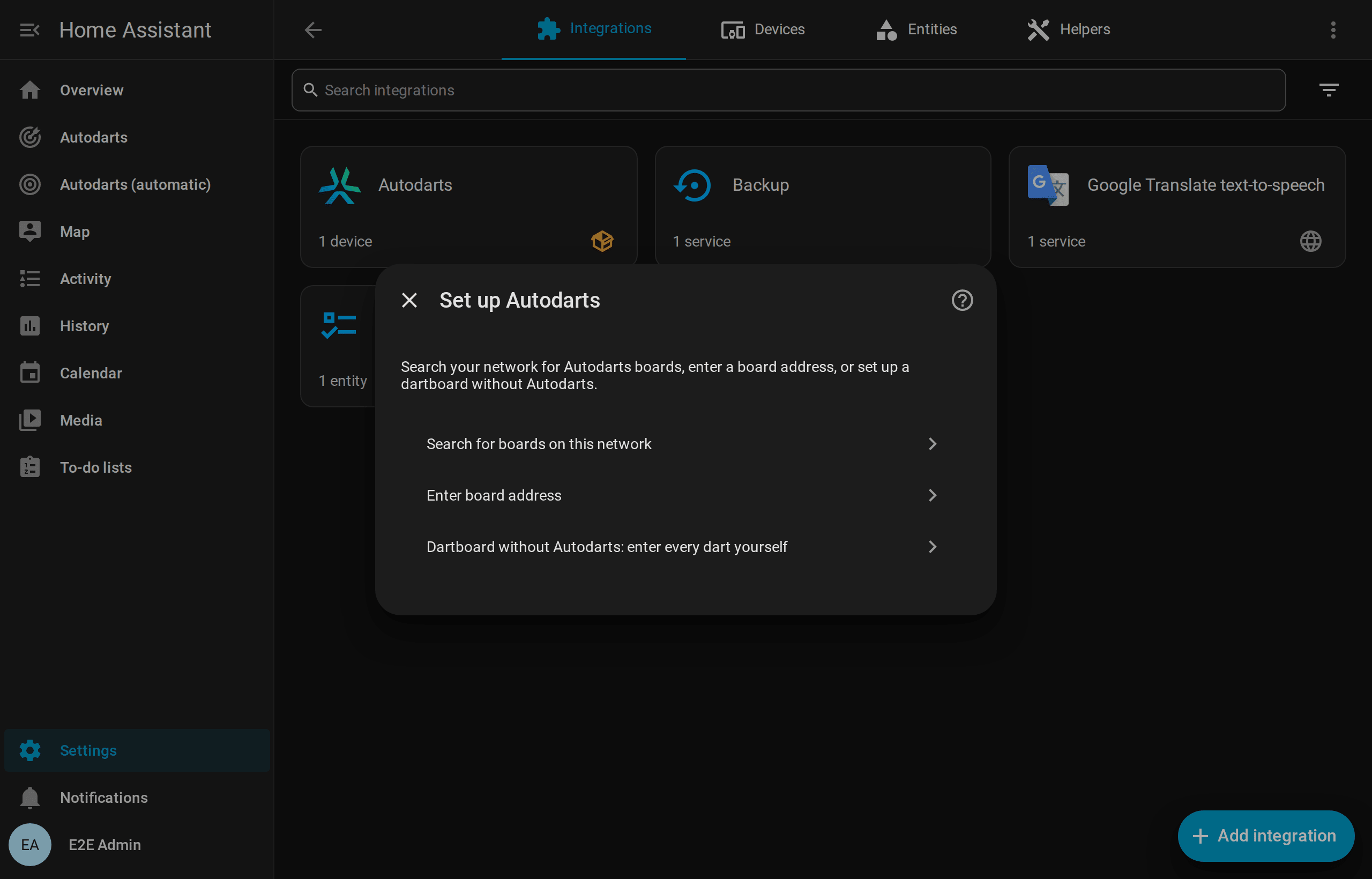
The installation guide explains the ways in detail. Without Autodarts, choose Dartboard without Autodarts: enter every dart yourself and give the board a name; Play without Autodarts shows the rest.
5. Create the dashboard
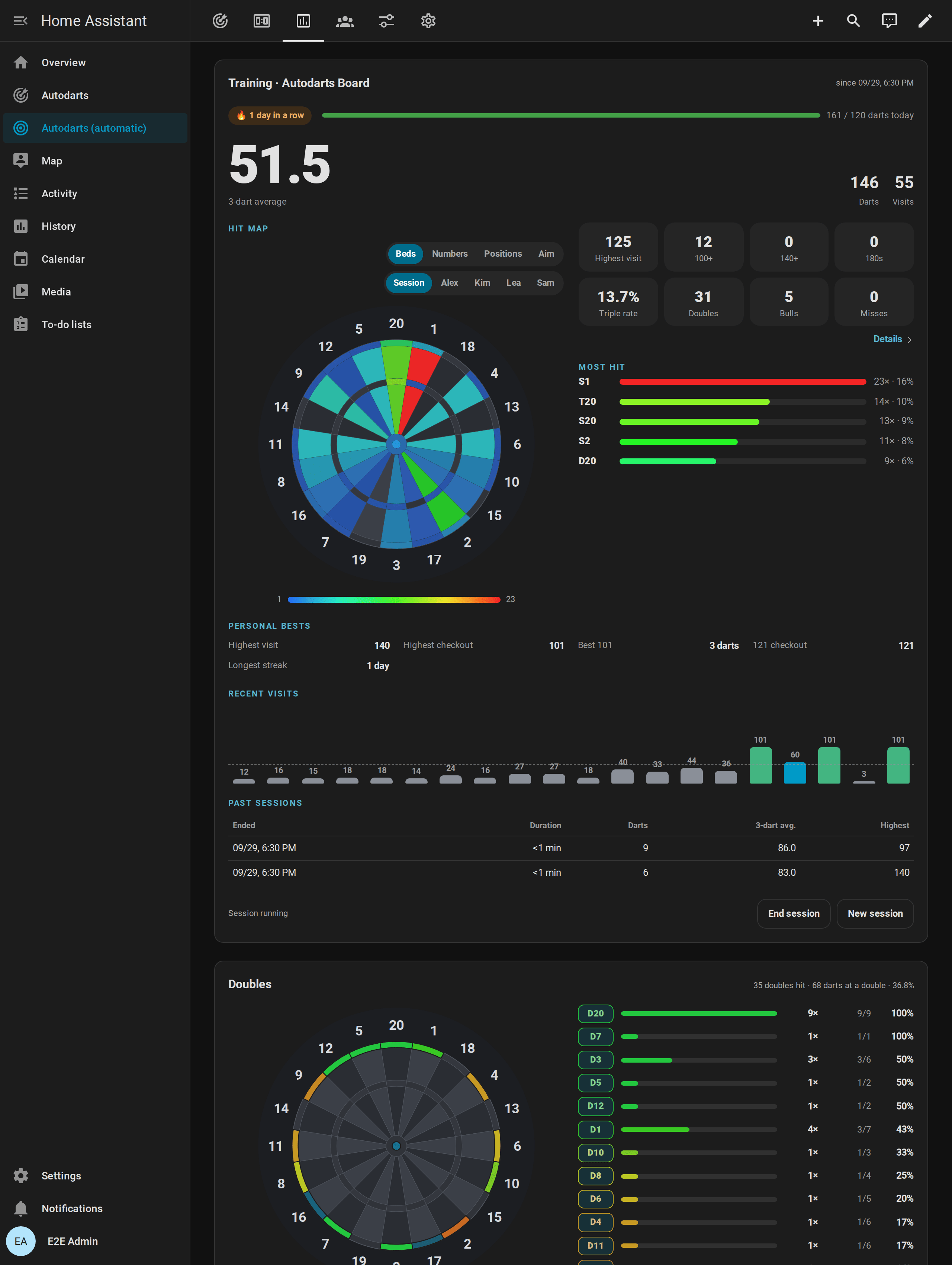
Go to Settings → Dashboards → Add dashboard → Autodarts. One click creates a complete dashboard for your board, with views for the live game, the scoreboard, training, the players and the board. It updates itself when you add a board or a later version brings new views.
6. Put the scoreboard next to the board
- On the tablet, open Home Assistant in the browser or in the Home Assistant app and sign in. A user of its own without administrator rights keeps the screen from changing your settings.
- Open the Autodarts dashboard and its Scoreboard view.
- Switch the browser to full screen and keep the tablet awake while it is charging.
The scoreboard guide has the details and the options, such as the caller.
7. Play your first game
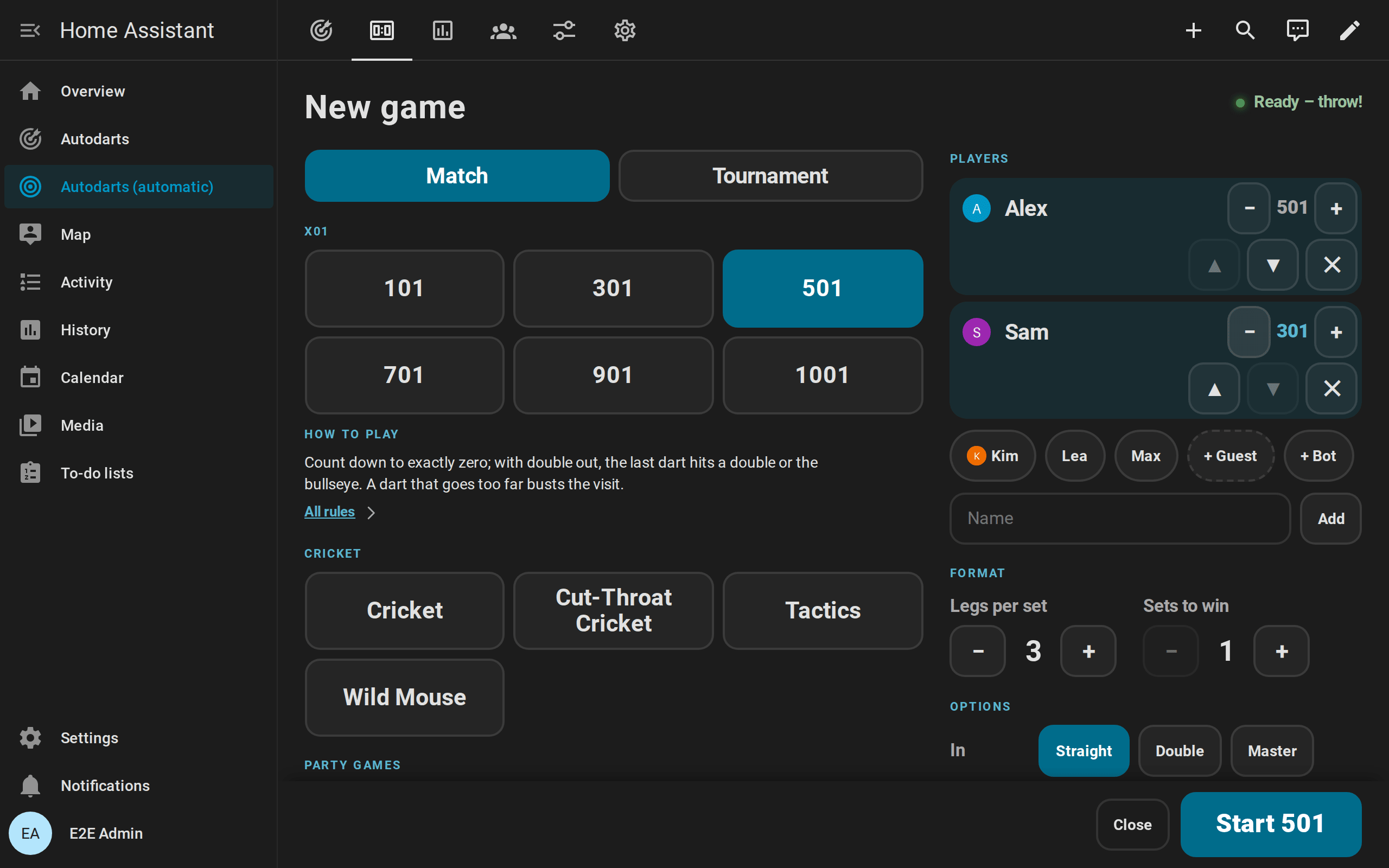
Tap New game on the scoreboard. Choose 501, add yourself, add the bot with + Bot if you play alone, and tap Start 501. Throw your darts: the scoreboard counts, shows your checkout route and passes the turn after every visit.
If the board misreads a dart, tap it in the visit and correct it. The games guide shows every game and the other ways to start one.
What next
- Light and sound: the blueprints flash your lights on a 180, call the scores or take a photo of a highlight. Each one is a single click to import.
- Your progress: personal bests, a heatmap of your darts, trends and achievements are in the statistics guide.
- Friends over: teams, handicaps and tournaments for up to eight players are in the games guide.
If something doesn't work
- The troubleshooting guide explains every message of the setup and every repair notice.
- Ask in GitHub Discussions. Questions are answered there, so every answer helps the next player too. English and German are welcome.
- If your setup is not in the list of supported devices, a compatibility report helps, whether it works or not.