Dashboard cards
The integration includes seven cards. Home Assistant loads them automatically, so no dashboard resource and no separate HACS download are needed. Each card:
- has a visual editor and follows your theme (light or dark) and language (English, German, Dutch, French or Spanish);
- adapts to its width, from a phone to a wall tablet;
- finds your board by itself. With several boards, choose one in the editor.
Try them live: the scoreboard, the live, training and players cards play a 501 against the bot, a Cricket game and a tournament in your browser, without Home Assistant.
To add one, edit a dashboard, select Add card and search for Autodarts. The card picker names the cards in your language and links each one to its section below.
On this page: Live card · Training card · Board status card · Scoreboard card · Doubles card · Players card · Leaderboard card · Automatic dashboard · Card editor · Accessibility · Tips
The guides show the cards at work: games and rules, scoreboard at the board and statistics and players.
Live card
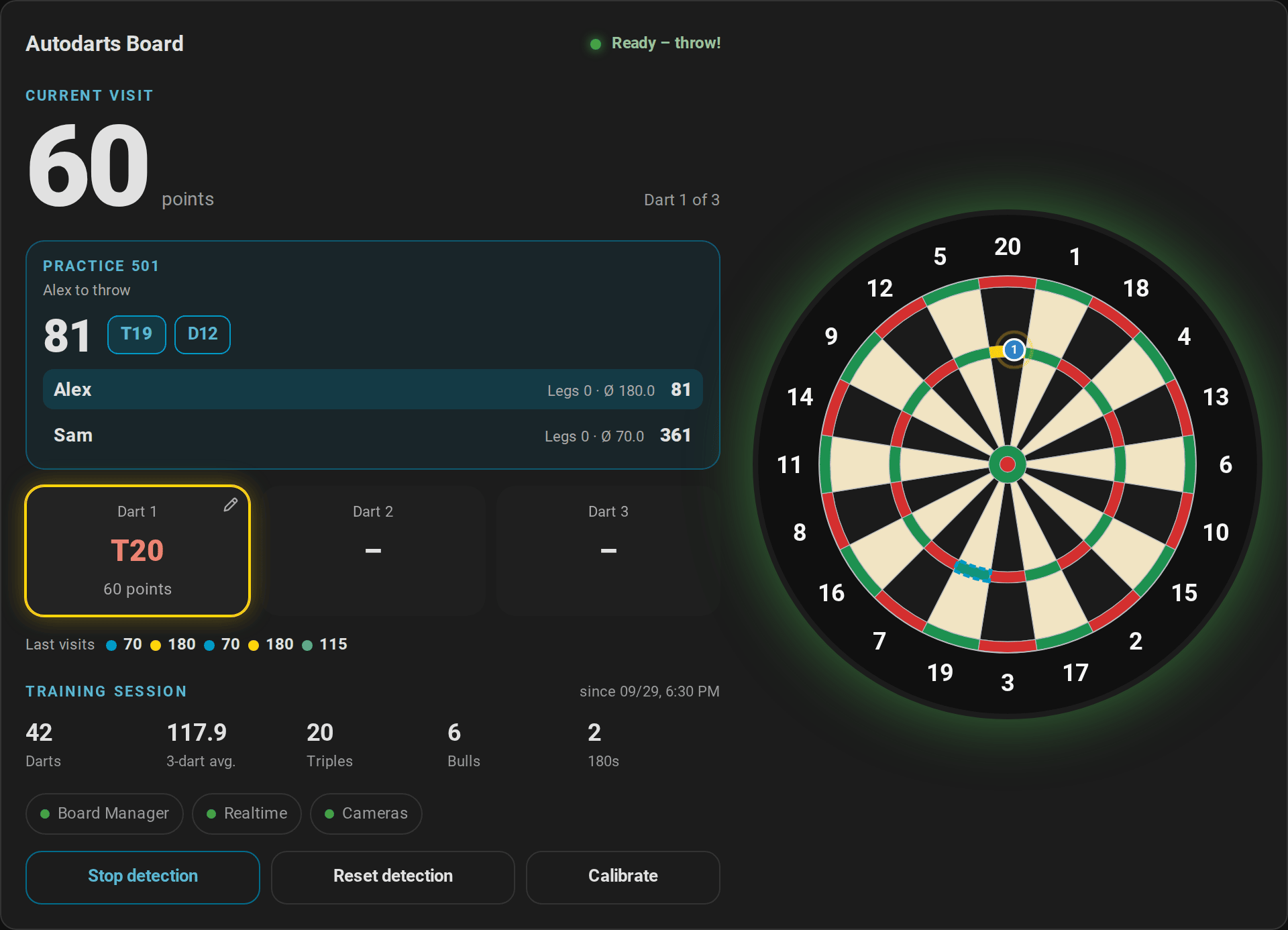
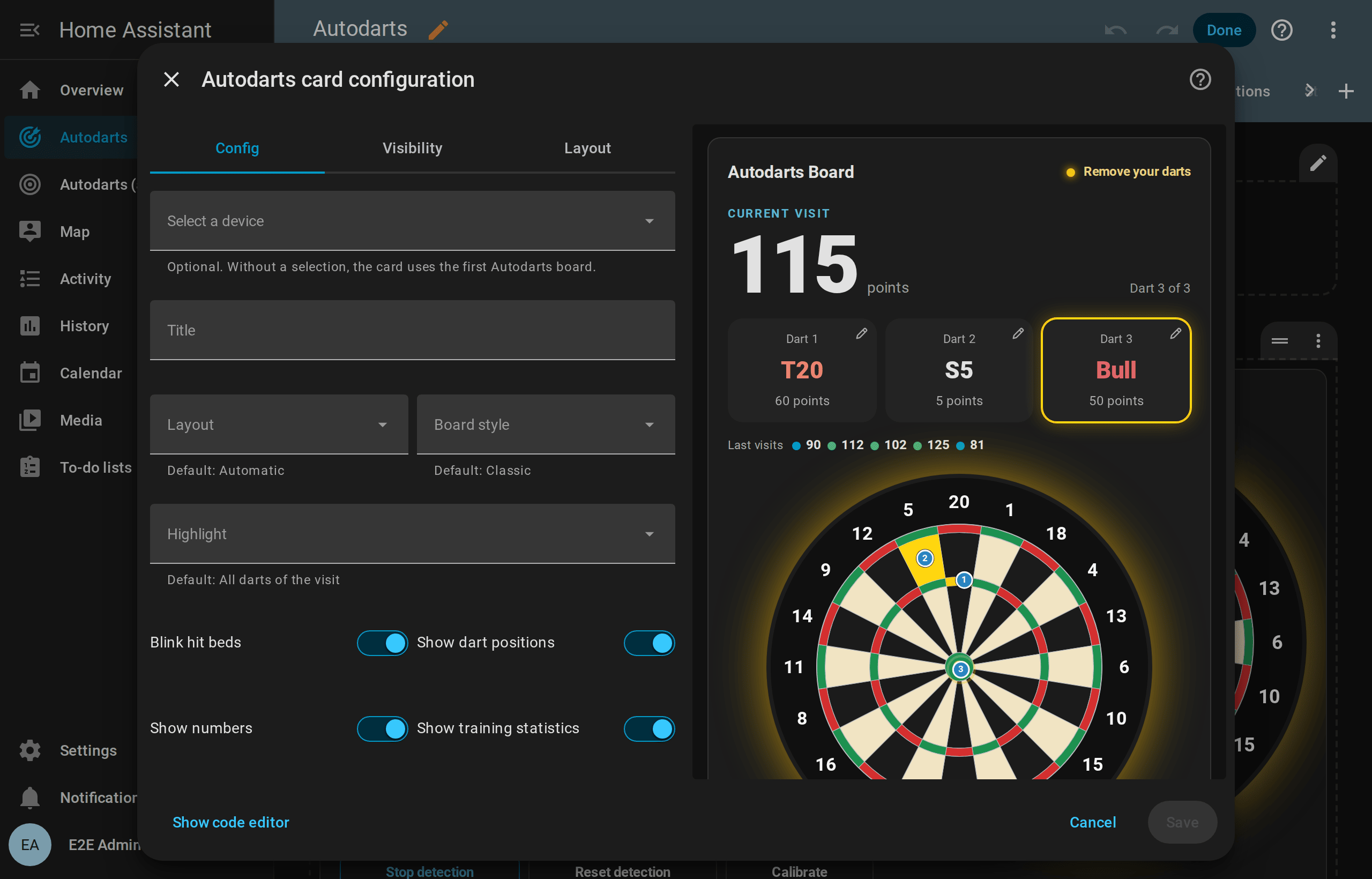
custom:autodarts-card shows the current visit, dart by dart, on a board drawn with the geometry of the Autodarts Board Manager.

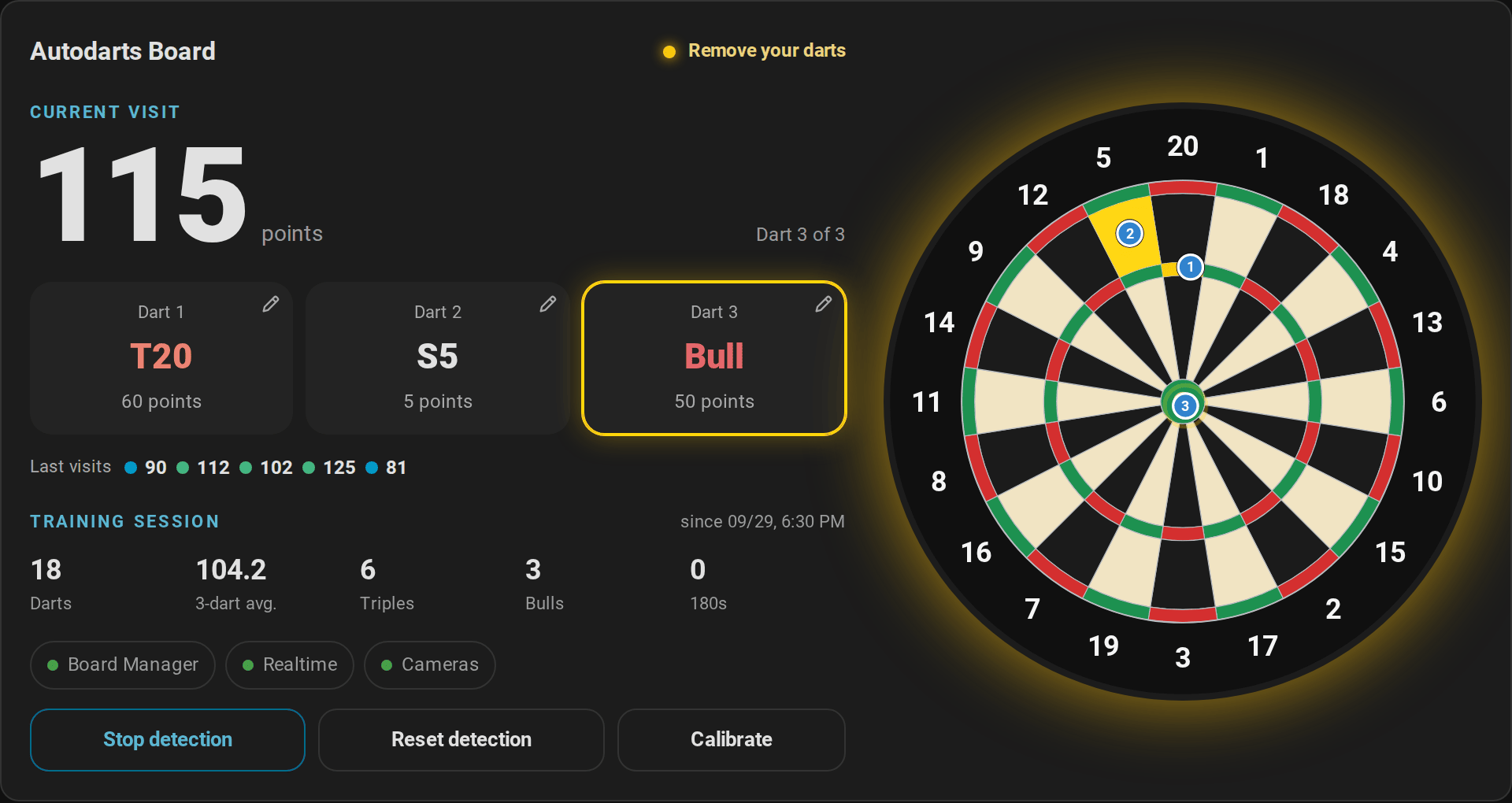
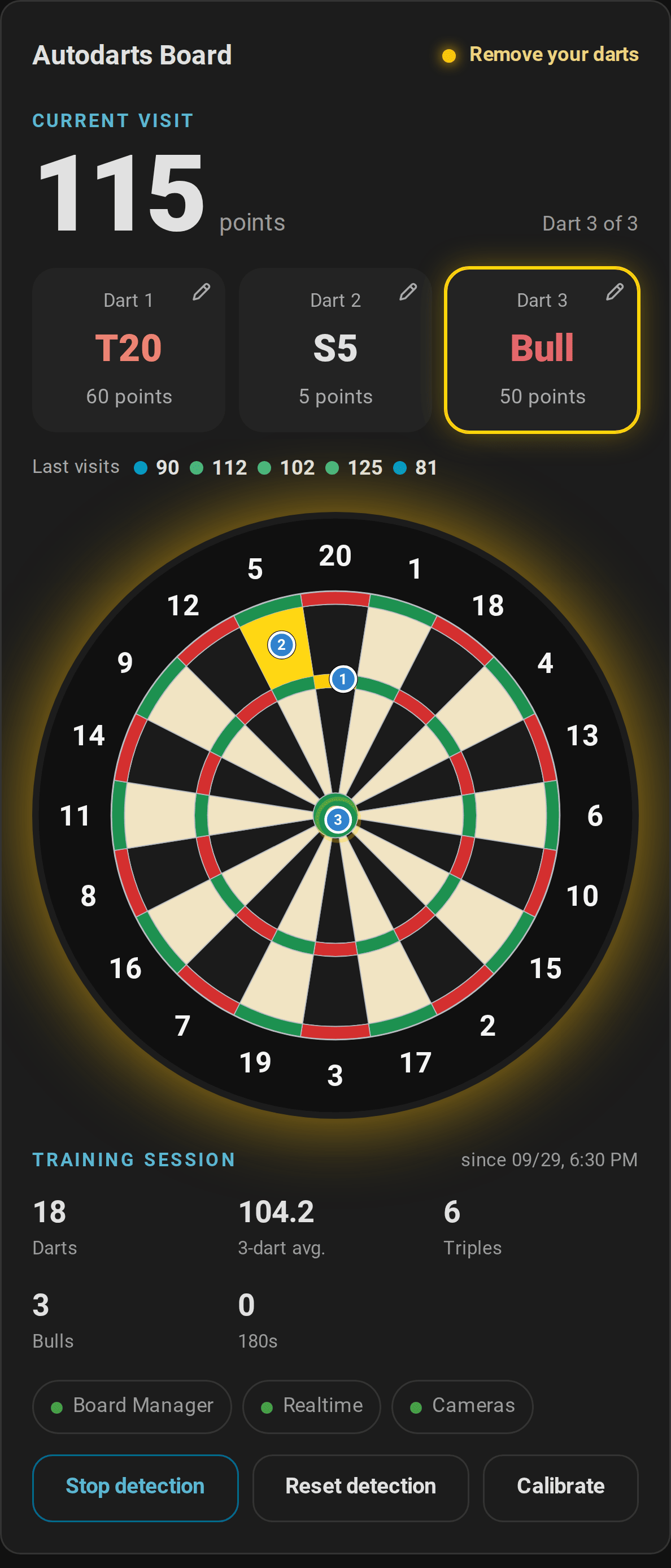
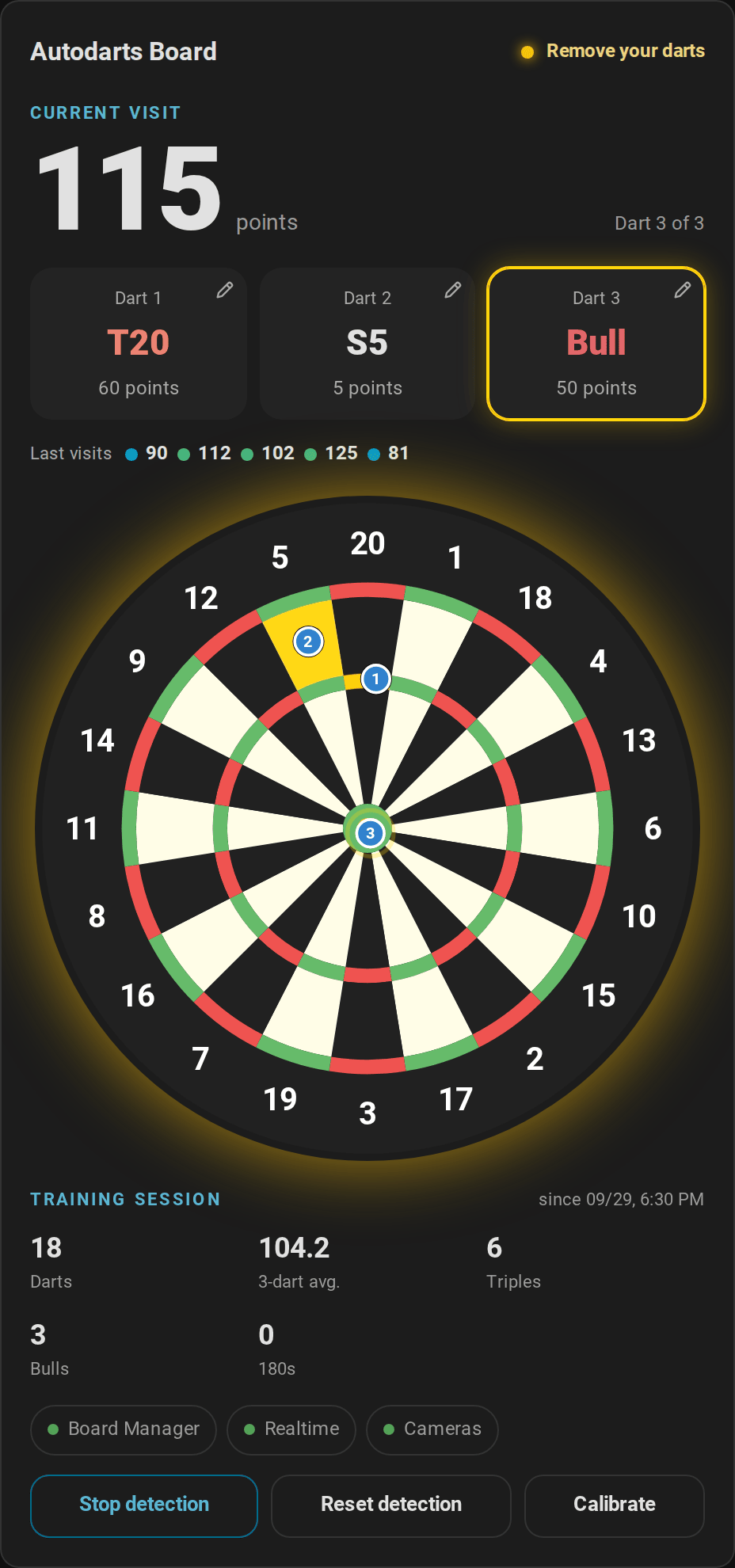
- Visit: score, the three dart slots and a progress indicator. The latest dart is outlined. A dart with a pencil at its top right corrects with a tap: the pad of the scoreboard opens below the slots, with its keys, its board, the loupe and the zoom. The bot's darts, and darts that older integrations report without their number, have no pencil.
- Last visits: the scores of your last five visits, colored like the training card's chart. Hover one for its darts.


- Practice game: while a practice game runs, the remaining score, the checkout route and busts appear above the dart slots, and the board outlines the bed to aim at next. Where no checkout exists, the setup takes its place, for example T20 T20 S17 leaves 32, and the board outlines its first dart; "No checkout possible" appears only when no setup exists for a score that could be finished in one visit: up to 170 with double out, up to 180 without. The bot is listed as Bot. In a match, a list shows every player with the remaining score, legs, sets and average, and highlights the player at the board; start scores of their own appear beside the names, and a team match lists the two teams. A won match shows its result in large type, for example 2 : 1, and the match summary instead of the list. In the party games, the panel shows the round or hole, the target and every player's points or, in Killer, their number and lives, and who is out. The bull of Around the Clock and Halve-It, where the outer bull counts too, reads Bull (25/50), and both bull beds are outlined. During a bull-off it lists the bed and the distance of every dart and who leads, and it says when a tie throws again. In the Cricket games, a chalkboard shows the marks of every player or team on the numbers of the game, the points and the marks per round, dims the numbers everybody has closed and outlines the next open number on the board. Screen readers read the marks as words. In a training game, the panel shows the target, the progress, darts and hit rate (Bob's 27: points and round; checkout training and 121 checkout: the route, or where the darts left cannot finish the score the setup with the score it leaves, and the checkout rate; Catch 40, the JDC Challenge and the singles training: the round or part and the points), and the board outlines the beds of the target. The live card and the scoreboard share how they show a game, so both always tell the same.
- Board:
- Hit beds blink in the highlight color.
- Numbered markers show where each dart landed.
- The board glows in the detection status color of your theme: green (success) when ready, amber during a takeout, orange (warning) when stopped, purple while calibrating, red (error) when offline or when a camera has a problem.

- Training statistics: darts, 3-dart average, triples, bulls and 180s of the session.
- Connections: Board Manager, realtime and cameras. Tap a chip for details.
- Controls: start or stop detection, reset detection and calibrate. Resetting and calibrating need a second tap to confirm. Boards without a detection switch get the start or stop button that fits the board status.
- Keypad: on a dartboard without Autodarts, the keypad of the scoreboard sits below the darts, and the connections and controls are left out. Its Undo last visit keeps its place and waits while no visit can be undone. With
keypad: true, a board with Autodarts gets it too while Practice manual entry is on.
The board shows the visit; nothing on it reacts to a tap. Numbers, dates and times follow your profile settings: number format, 12- or 24-hour clock and the time zone of the server or the browser.




On a phone, the live card stacks the visit, the board, the statistics and the controls:
Options
| Option | Values | Default | Description |
|---|---|---|---|
device_id |
device | first board | The board to show |
title |
text | board name | Card title |
layout |
auto, horizontal, vertical, board |
auto |
Board on the right, board below, or board only. auto switches to vertical on narrow cards |
board_style |
classic, autodarts |
classic |
Classic board with wires, or the flat Autodarts look |
highlight |
visit, last, none |
visit |
Highlight all darts of the visit, only the last one, or none |
blink |
boolean | true |
Blink the hit beds |
show_markers |
boolean | true |
Show dart positions |
show_numbers |
boolean | true |
Show the numbers around the board |
show_stats |
boolean | true |
Show the training statistics |
show_recent |
boolean | true |
Show the last visits |
show_practice |
boolean | true |
Show the practice game and the bed to aim at |
show_summary |
boolean | true |
Show the match summary when an X01 or Cricket match ends |
summary_seconds |
0–600 | 0 |
How long the summary stays, in seconds; 0 keeps it until the next game starts |
corrections |
boolean | true |
Correct a dart of the visit with a tap on it |
keypad |
boolean | false |
Show the keypad for darts entered by hand while Practice manual entry is on; on a dartboard without Autodarts it shows unless false is set |
show_connection |
boolean | true |
Show the connection chips |
show_controls |
boolean | true |
Show the controls |
accent_color |
color | theme primary color | Labels and main button |
highlight_color |
color | #ffd60a (gold) |
Hit beds and the latest dart |
With layout: vertical and board_style: autodarts, the board sits below the visit, in the flat look of Autodarts:
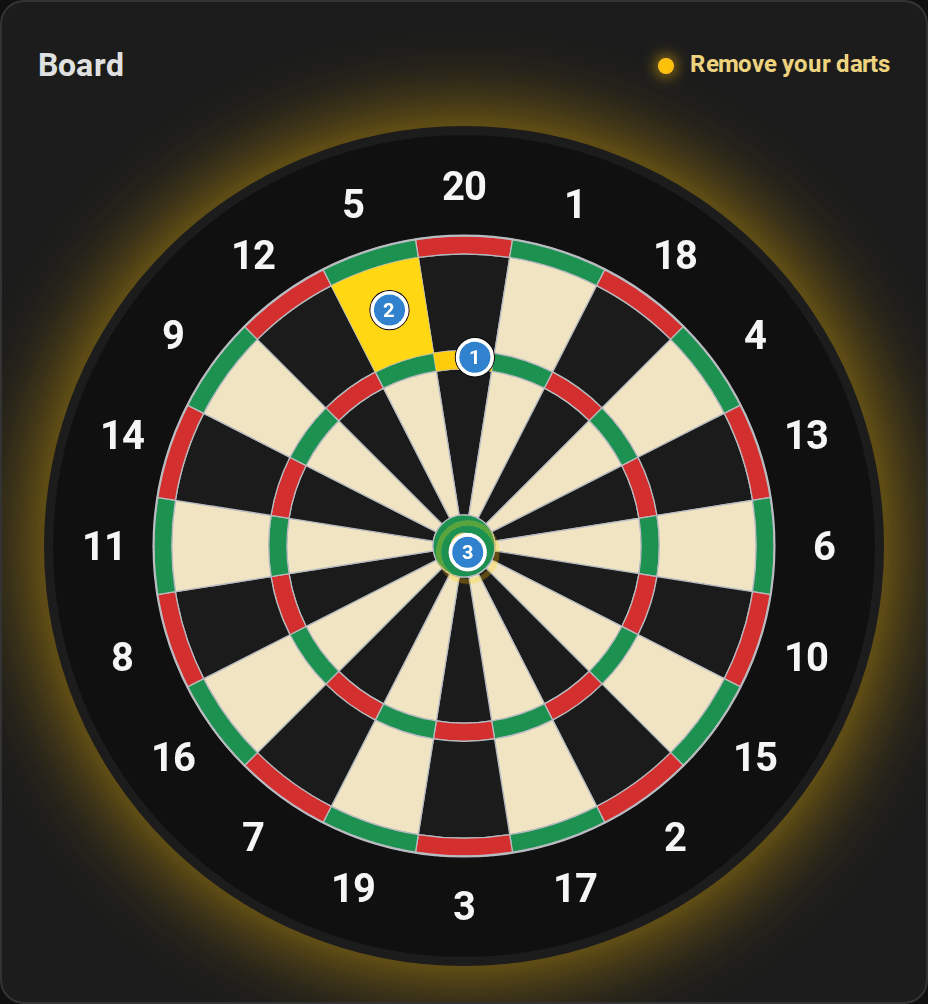
With layout: board, the card shows the board alone:
type: custom:autodarts-card
layout: vertical
board_style: autodarts
highlight: last
highlight_color: "#00e5ff"
Training card
custom:autodarts-training-card turns the local training session into a dashboard you'll want to look at after every session.

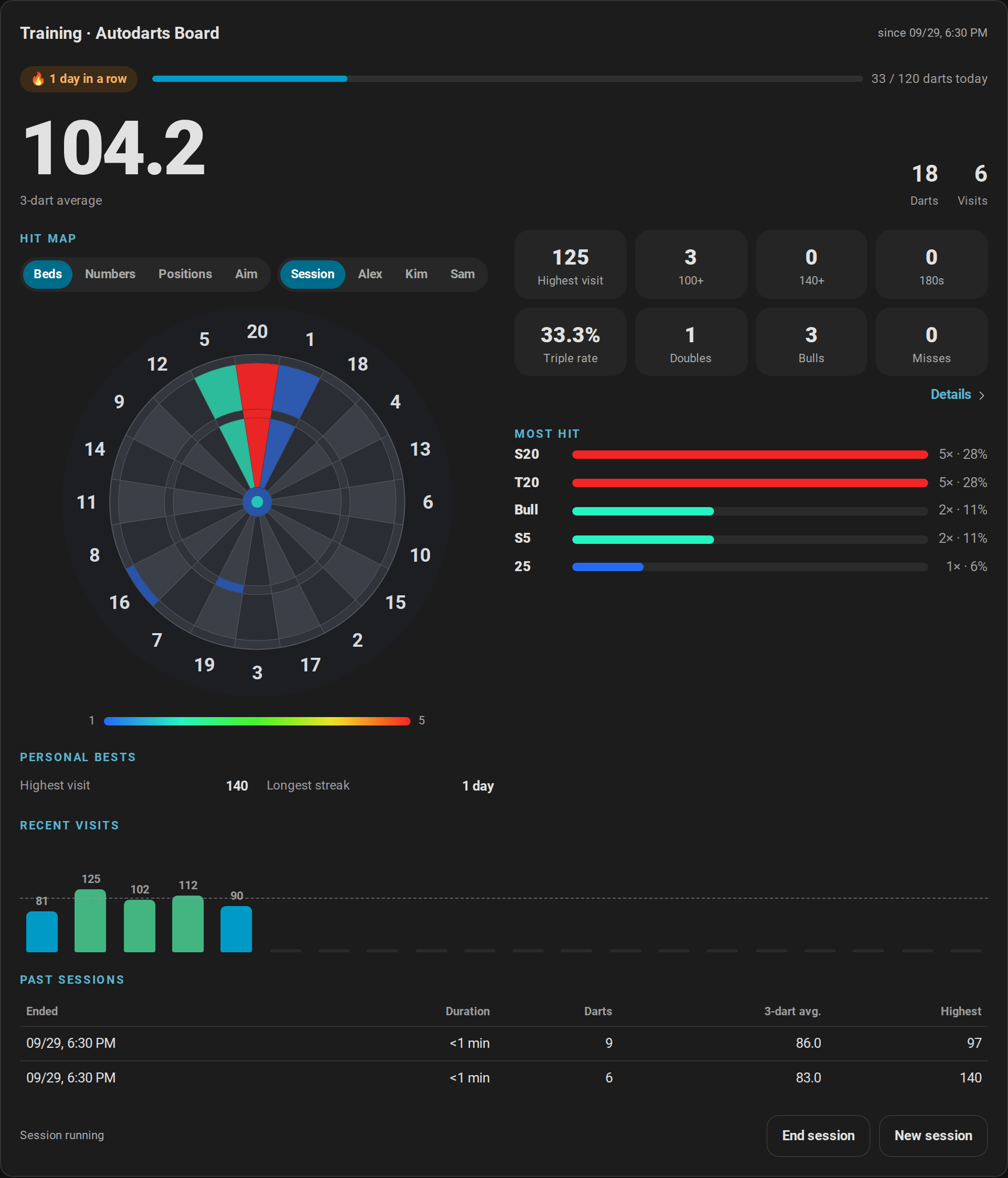
- 3-dart average, the number of darts and visits, and when the session started.
- Streak and daily goal: the training streak in days and today's darts, with a bar towards the daily goal that turns green when you reach it.
- Heatmap:

- Every bed is colored by how often you hit it, from blue (rarely) to red (most often).
- Hover or tap a bed for its count and share. Screen readers get the counts of all hit beds as a list, the most hit first.
- In
numbersmode, the heatmap sums each number's singles, doubles and triples instead. - In
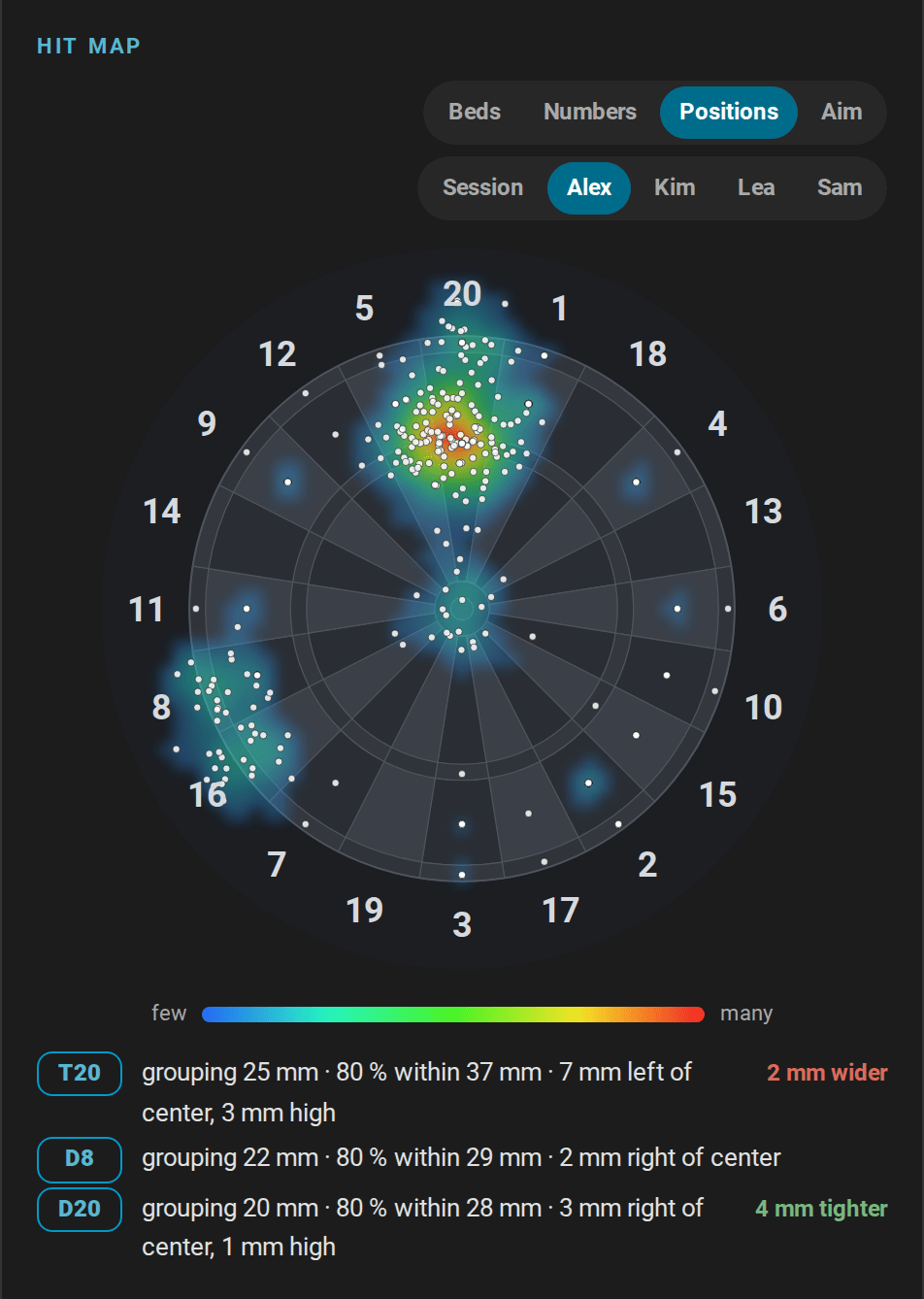
positionsmode, it shows where the darts landed, from the positions the board reports: a smoothed density from blue (few darts) to red (many), with the newest 300 darts as dots. For the session, the darts of the current visit show the moment they land, as blue pins, and join the logged darts when you pull them. Below the board, the grouping at up to three beds aimed at, for example T20: grouping 38 mm · 80 % within 61 mm · 6 mm left of center, with 4 mm tighter when the newer darts group closer. - In
aimmode, it shows where the player scores the most points per dart with their own spread, from 30 darts aimed at a treble: every aim point colored by its points per dart, a ring at the best aim, and below the board the best aim against the treble 20, the treble 19 and the bull, for example T19: best aim · 18.3 points per dart and T20: 17.3 points per dart -1.0. With fewer darts, the card says how many are missing. Where to aim. - The switches above the board choose the mode and whose darts it shows: the session, or a named player with all their hits and the positions of their last 1000 darts. The most hit beds follow the choice. How positions are kept.
- Statistics: highest visit, 100+, 140+ and 180 visits, triple rate, doubles, bulls and misses. 180s light up in gold. The 100+, 140+ and 180 counts grow when you pull the darts, once the visit is complete. Details › below the tiles opens the details of the session's darts. Screen readers read every tile.
- Most hit beds: the top five, with count and share: of the session's darts, or of the hits a player's profile counted.
- Personal bests: every personal best that has a value: highest visit and checkout, the fewest darts for every start score, the best Cricket marks per round, the best session average, Around the Clock, the doubles training, Bob's 27, the 121 checkout, Catch 40, the JDC Challenge, the singles training and the longest training streak. The section appears with the first record.
- Recent visits: a bar chart of your last visits with the session average as a dashed line.
- Bars are colored gray below 60, accent color from 60, green for 100+, orange for 140+ and gold for 180.
- The visits come from the recorder, so the chart survives page reloads, and every visit shows, also when the turn passes at the same moment, as it does in a practice game.
- An undone visit leaves the chart; corrected, it comes back as a new visit. The bot's visits are left out, as they count for nobody.
- Past sessions: end time, duration, darts, 3-dart average and highest visit of your last five finished sessions.
- Session controls:
- Start session and End session switch the training session on and off. Ending needs a second tap to confirm.
- New session ends the running session and starts the next one, also after a second tap.
- The line next to the buttons tells whether a session is running or when the last one ended.
Options
| Option | Values | Default | Description |
|---|---|---|---|
device_id |
device | first board | The board to show |
title |
text | Training · board name | Card title |
mode |
beds, numbers, positions, aim |
beds |
Heatmap per bed, per number, of the dart positions or of where to aim |
player |
text | the session | A player name: the heatmap starts with that player's darts. The editor lists the named players and takes any other name |
board_style |
muted, classic, autodarts |
muted |
The muted board lets the heatmap stand out |
history_size |
5–60 | 20 |
Visits in the chart; labels are shown up to 30 |
show_heatmap |
boolean | true |
Show the heatmap |
show_heatmap_controls |
boolean | true |
Show the switches of the mode and of whose darts the heatmap shows |
show_stats |
boolean | true |
Show the statistics tiles |
show_bests |
boolean | true |
Show the personal bests |
show_top |
boolean | true |
Show the most hit beds |
show_history |
boolean | true |
Show the recent visits |
show_sessions |
boolean | true |
Show the past sessions |
show_reset |
boolean | true |
Show the session controls |
accent_color |
color | theme primary color | Labels and 60+ visits |
type: custom:autodarts-training-card
mode: numbers
history_size: 40
show_reset: false
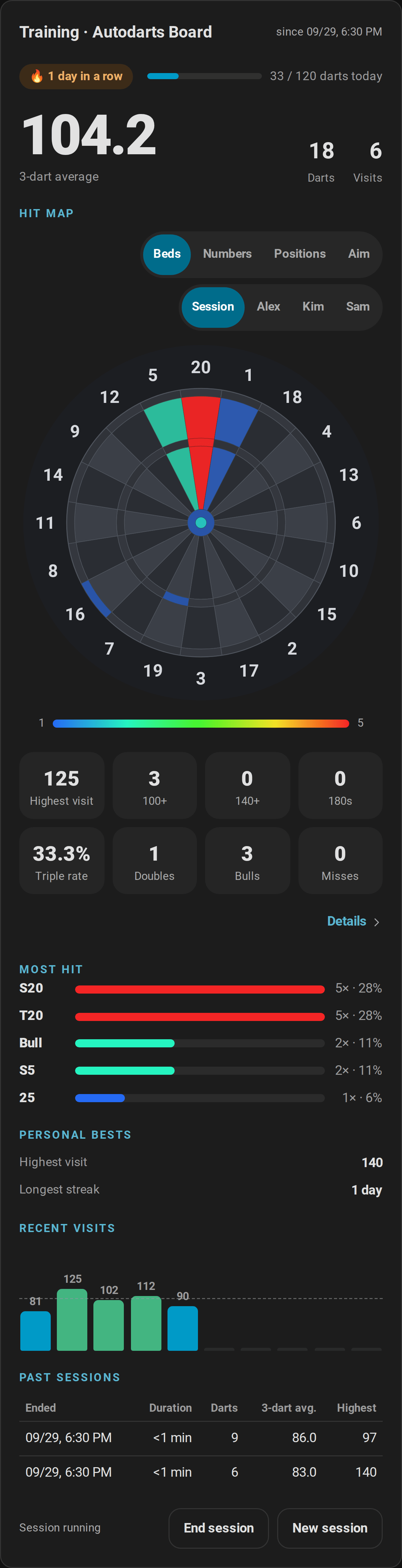
On a phone, the training card stacks its sections, from the average down to the session controls:
With mode: positions and player: Alex, the heatmap shows where Alex's darts landed, and below the board the grouping at each bed aimed at:
The switches above the board choose the mode and whose darts the heatmap shows:
Board status card
custom:autodarts-status-card shows the health of the board and gathers the maintenance actions in one place.

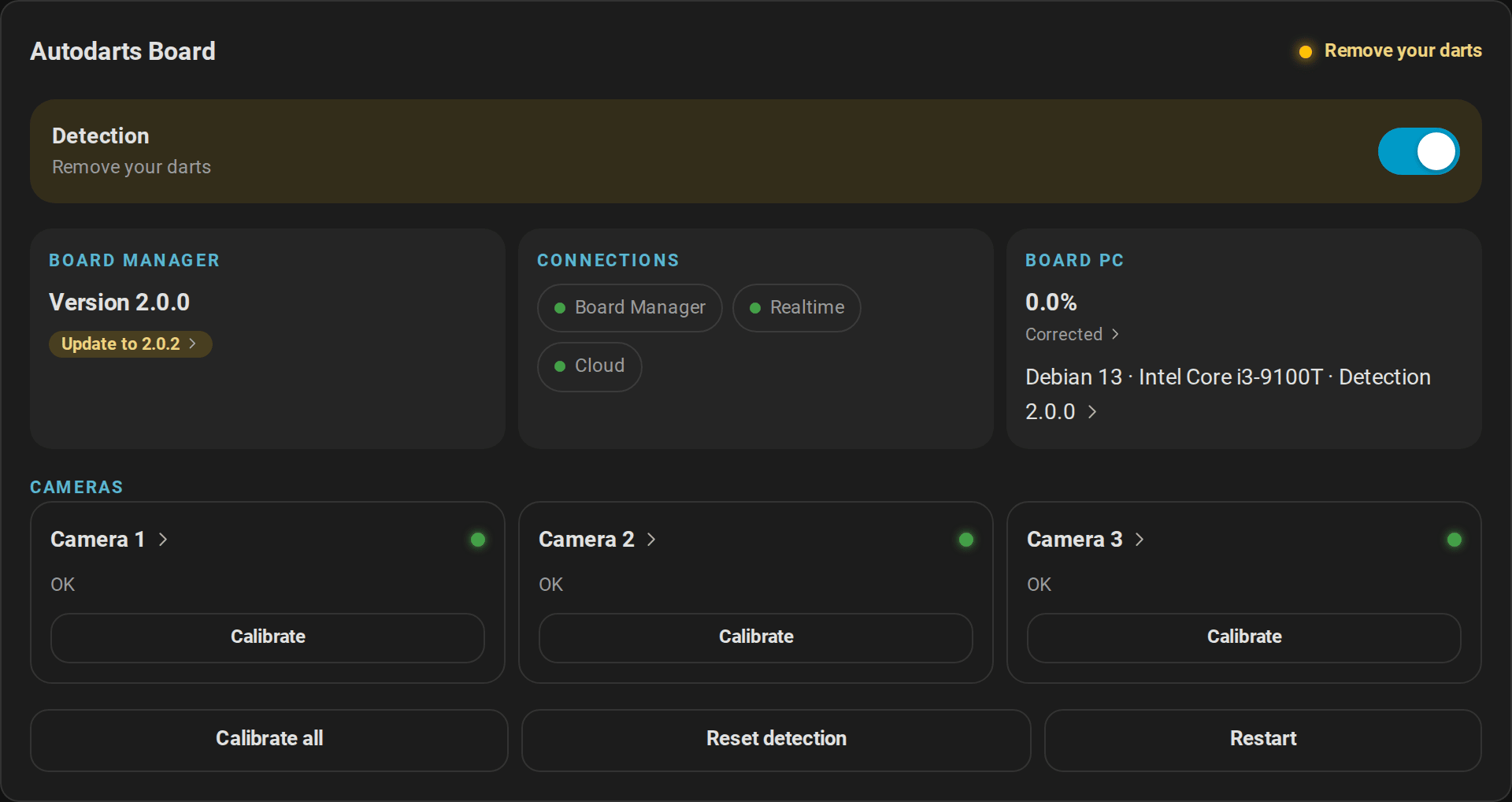
- Detection: a switch with the current status, tinted in the status color. Boards without a detection switch start and stop detection with its buttons; the switch then follows the board status.
- Board Manager: the installed version and, with Board Manager 2, a badge for an available update, Update to 2.0.2 ›. Tap it for its details.
- Connections: Board Manager, realtime and the cloud connection of the board.
- Board PC (Board Manager 2): CPU and memory load, the detection frame rate and the share of darts the board corrected, each if you enabled its sensor. A value with an arrow opens its history, and so does the system line. The tile stays hidden while it has nothing to show.
- Cameras: a tile for every camera with its status and frame rate (if the frame-rate sensor is enabled) and its own calibration. Its name with an arrow opens the camera. A camera with a problem turns red. The keyboard focus stays on a calibration button while it asks for confirmation.
- Maintenance: calibrate all cameras, reset detection and restart Board Manager. Each needs a second tap to confirm.
A dartboard without Autodarts has none of these; the card says so in a sentence below its status.
Options
| Option | Values | Default | Description |
|---|---|---|---|
device_id |
device | first board | The board to show |
title |
text | board name | Card title |
show_connection |
boolean | true |
Show the connections |
show_system |
boolean | true |
Show the board PC load |
show_cameras |
boolean | true |
Show the cameras |
show_controls |
boolean | true |
Show the maintenance buttons |
accent_color |
color | theme primary color | Labels and the detection switch |
type: custom:autodarts-status-card
show_system: false
Scoreboard card
custom:autodarts-scoreboard-card is made for a tablet or TV next to the board: large enough to read from the oche, and it always shows what is being played.

- X01: a tile for every player with the remaining score, legs, sets and average. The player at the board is outlined and gets the checkout route, a bust or the game shot; where no checkout exists, the setup with the score it leaves, such as T20 T20 S17 leaves 32. Players with a start score of their own show it beside the name, and the bot its level.
- Teams: in a team match, two team tiles such as Alex & Kim against Sam & Lea, with the shared score, the average of each partner and the partner at the board in bold. The banner names the winning team.
- Cricket: a large chalkboard with the marks of every player, the points and the marks per round; the next open number is shown in its top-left corner, above the numbers, and in a match the column of the player at the board frames where a dart scores in green and what to close in amber. Tactics fills it from 20 down to 10 in smaller type, Wild Mouse adds rows for doubles, triples and 3 in a bed, Cut-Throat Cricket reminds that the fewest points win, and a team match has a column per team.

- Party games: the round and the target, every player's points, or in Killer their number and lives in red hearts. Golf and Baseball add a scorecard of every hole or inning with the total; after a tie, the extra rounds show as a play-off and the players out of it are dimmed.
- Bull-off: the bed of every player's dart and its distance from the center, if the board measured it. Once two darts are in, the one that leads is marked. A tie shows the banner Tie – throw again.
- Training games: the target in large type, with the progress, darts and hit rate (Bob's 27: points and round; checkout training and 121 checkout: the score, the route, or where the darts left cannot finish it the setup with the score it leaves, the checkout rate and the best score reached; Catch 40: the number, the visit and the points; the JDC Challenge: the part and the points; singles training: the round and the points).
- Between games: the title (the board name unless you set
title) and the score of the current visit together with darts, 3-dart average, highest visit and 180s of the training session, the training streak and today's darts towards the daily goal. - Winner: a banner names the winner of the match with the result, for example Alex wins the match 3 : 2!, until the next dart. The result counts legs, or sets in a match of sets; a match of one leg has none.
- Match summary: when an X01 or Cricket match ends, the match summary takes the place of the players.
- Tournaments: the round of the match, and between the matches the table or the bracket; see tournaments.
- Pictures: players linked to a person show the person's picture next to their name.
- Visit: the three darts of the current visit along the bottom, and beside them its score. While the board is empty, and between games where the big number is the visit, that tile shows the last visit instead, which a tap takes back. A tap on a dart corrects it; see correcting and entering darts. Nothing on the card changes its height during a game: the lines for a route, a note and the details keep their room while empty, and a narrow tile keeps two lines for a long route from the start.
- Caller: with
caller: true, the screen at the board calls the game itself in the language of Home Assistant: English, German, Dutch, French or Spanish (other languages hear English). It calls only what counts: - X01: the points a visit scored, "No score" for a bust or a visit before the opening double, "you require 81" whenever the remaining score can be finished (up to 170 with double out, 180 without), "leave yourself 32" when only a setup is possible, the game shot of a leg and the match, and a fanfare for a 180 that counted. The bot is called Bot.
- Cricket games: the marks of a visit, such as "5 marks". Shanghai and Halve-It: the points on the target; Count-Up: the points of the visit; Baseball: the runs, such as "3 runs". Killer, Golf, where the last dart counts, and the training games get no score calls.
- Checkout training, 121 checkout and Catch 40: what the next attempt or visit requires, such as "You require 121".
- Darts thrown after a bust or a game shot are not called.
It uses the speech output of the browser, so nothing needs to be set up in Home Assistant. Browsers play sound only after a tap: tap Caller on the scoreboard once to switch it on, and again to mute it. The button keeps its name; its pressed state and the speaker symbol show whether the caller is on.
An X01 visit counts from the score the integration says it started from, so a moment the screen missed, such as a takeout while a tablet woke up, never adds two visits up. A scoreboard that was away, on another view or without its connection to Home Assistant, calls and celebrates nothing that happened meanwhile: it follows the game again from the states it finds when it is back.

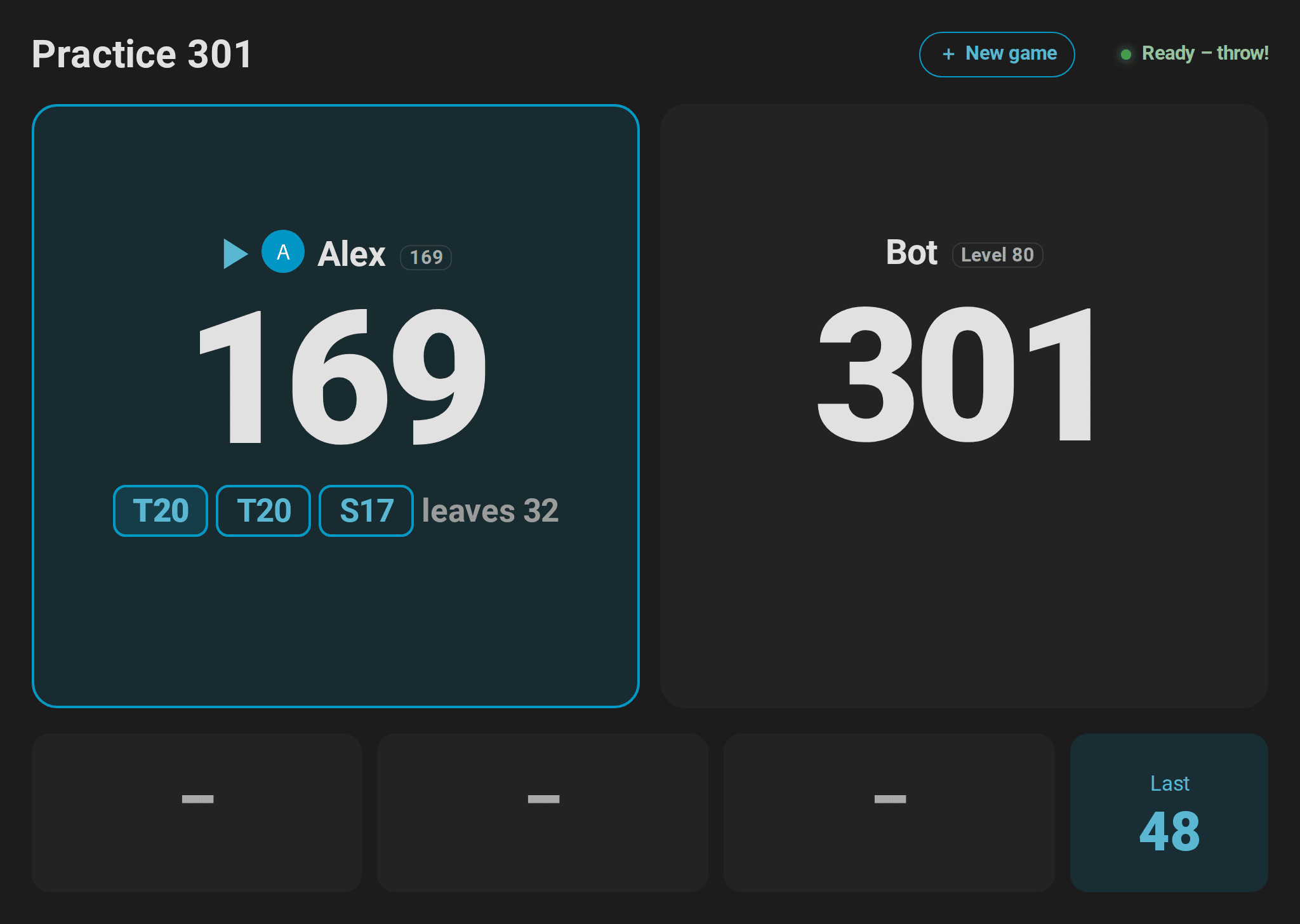

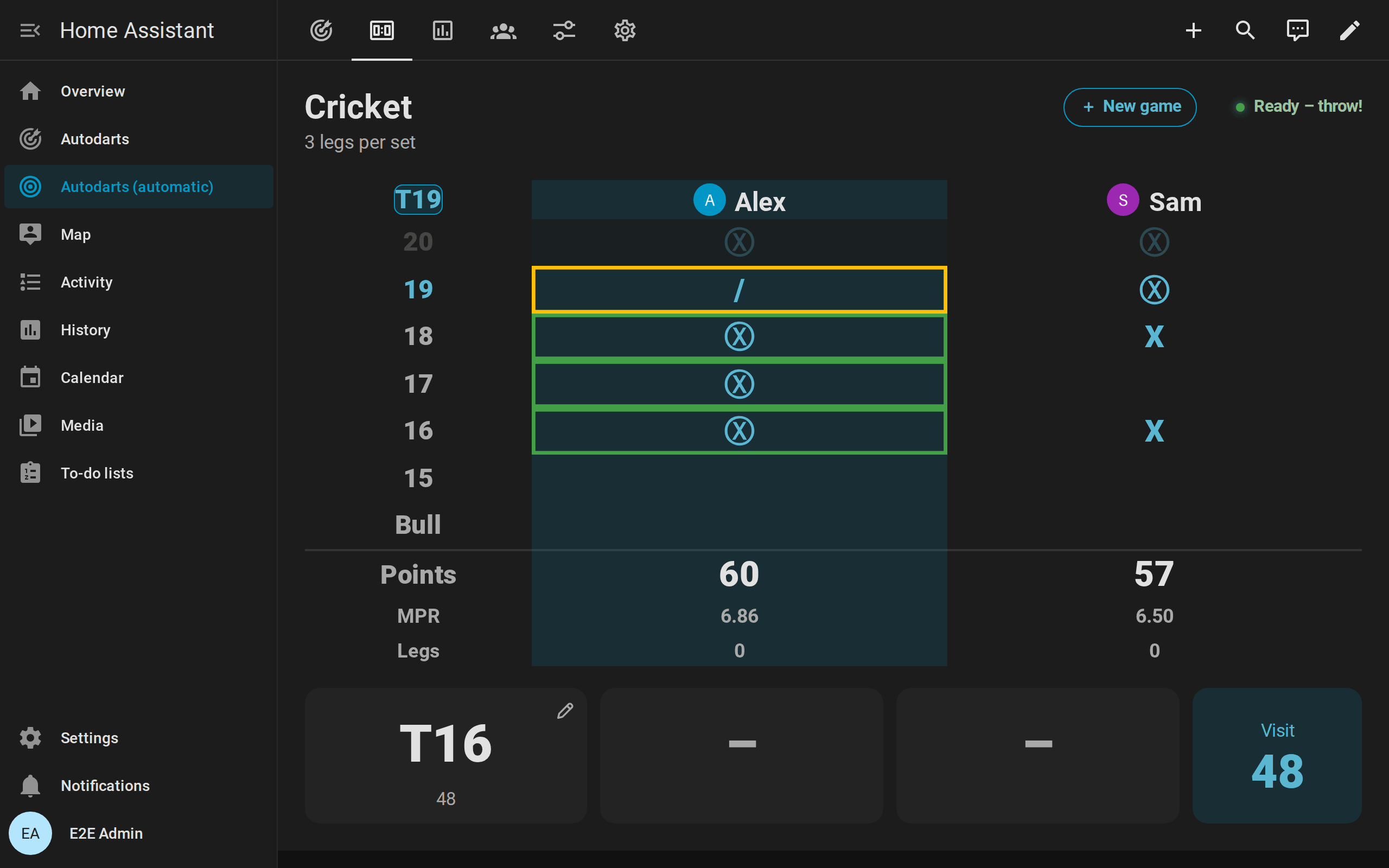
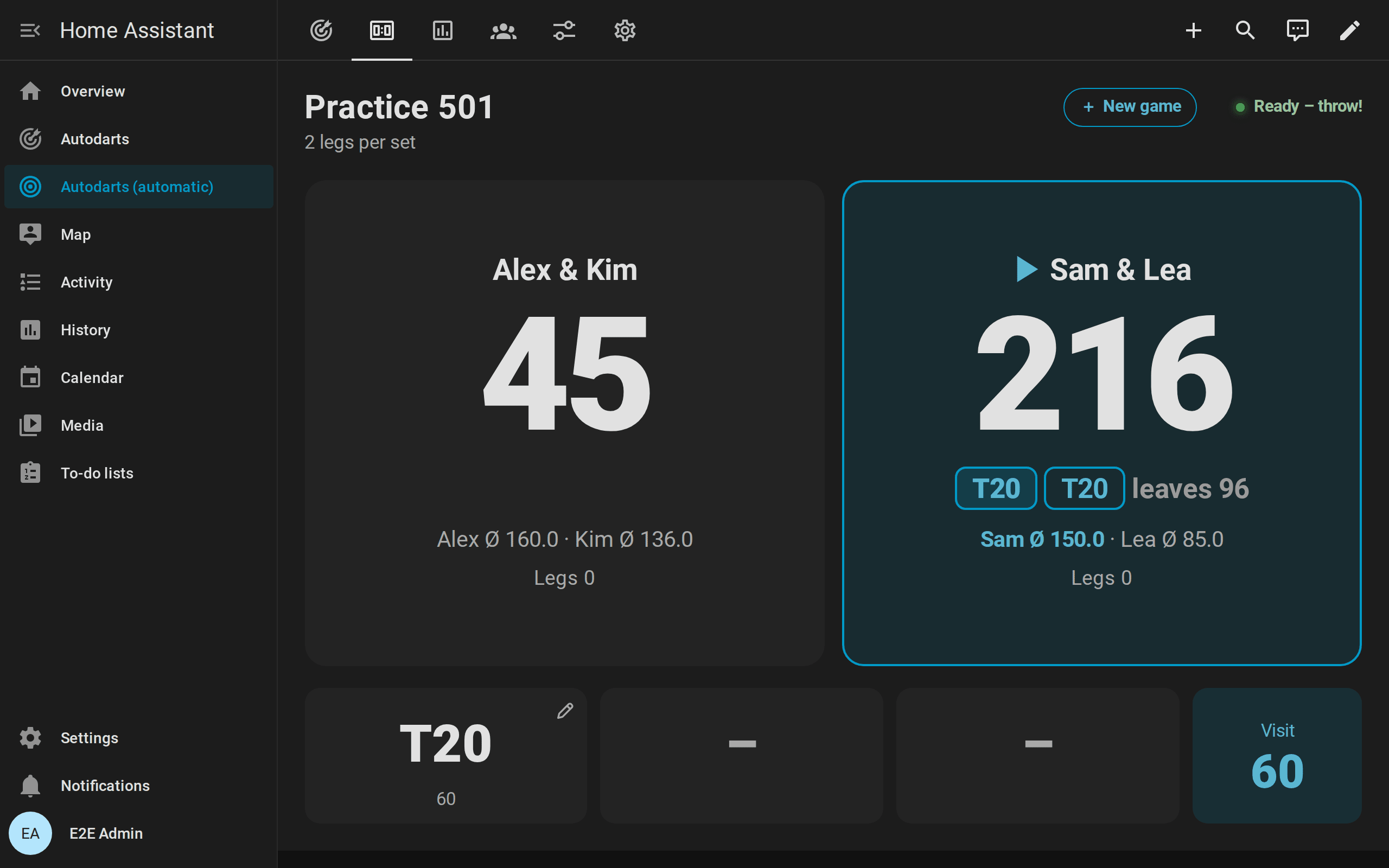
The automatic dashboard has a Scoreboard view that shows the card across the whole screen. With full_height, the scoreboard is exactly one screen high: the numbers and tables grow and shrink with the room the banner, the visit and the keypad leave, so nothing has to be scrolled, from an 800 × 480 display to a TV. A portrait tablet shows two players one above the other, three or four two by two. On a phone, the full-height scoreboard leaves room for the browser's address bar. The guide scoreboard at the board shows how to set up a tablet or TV, the caller and idle mode step by step.
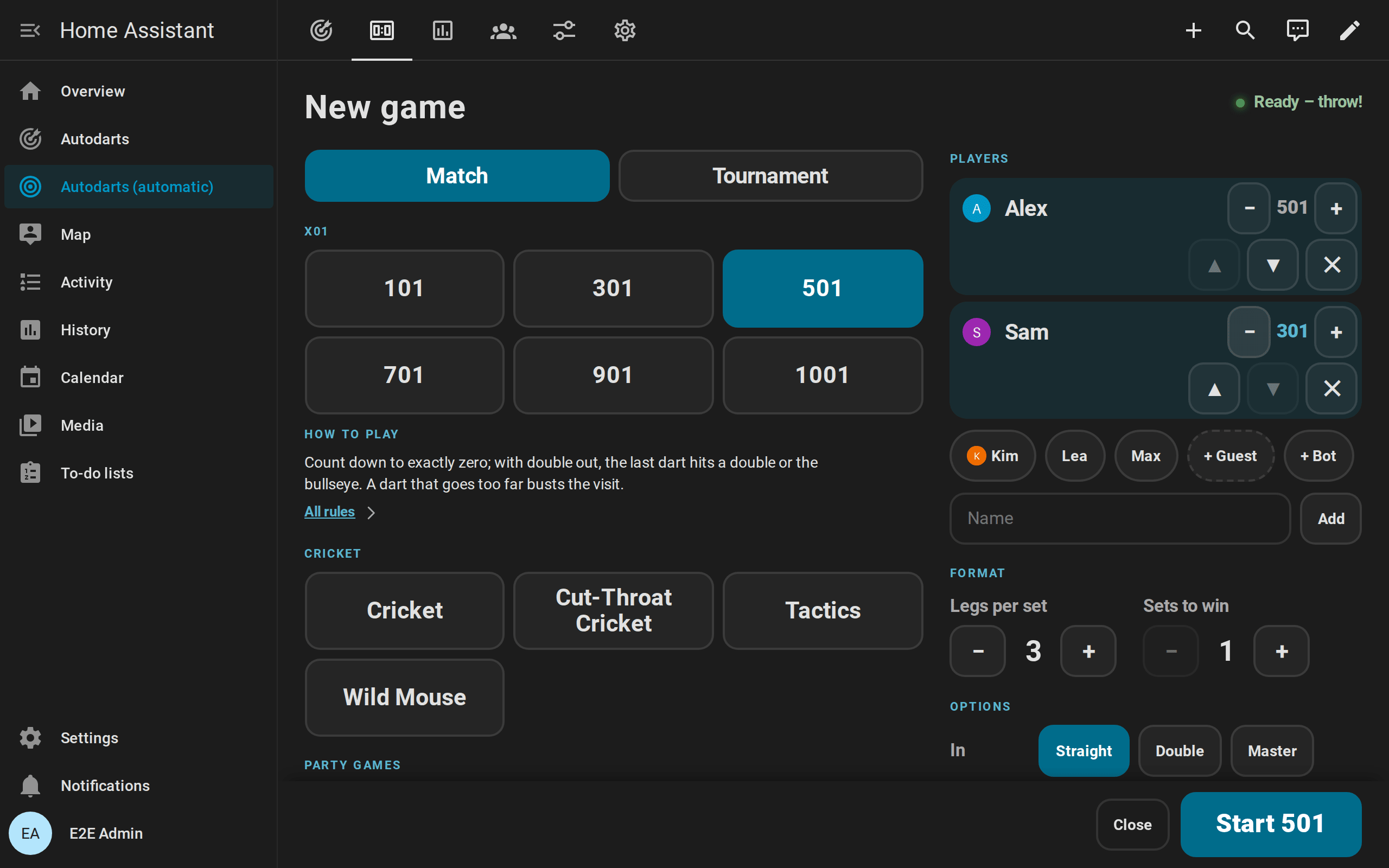
New game screen
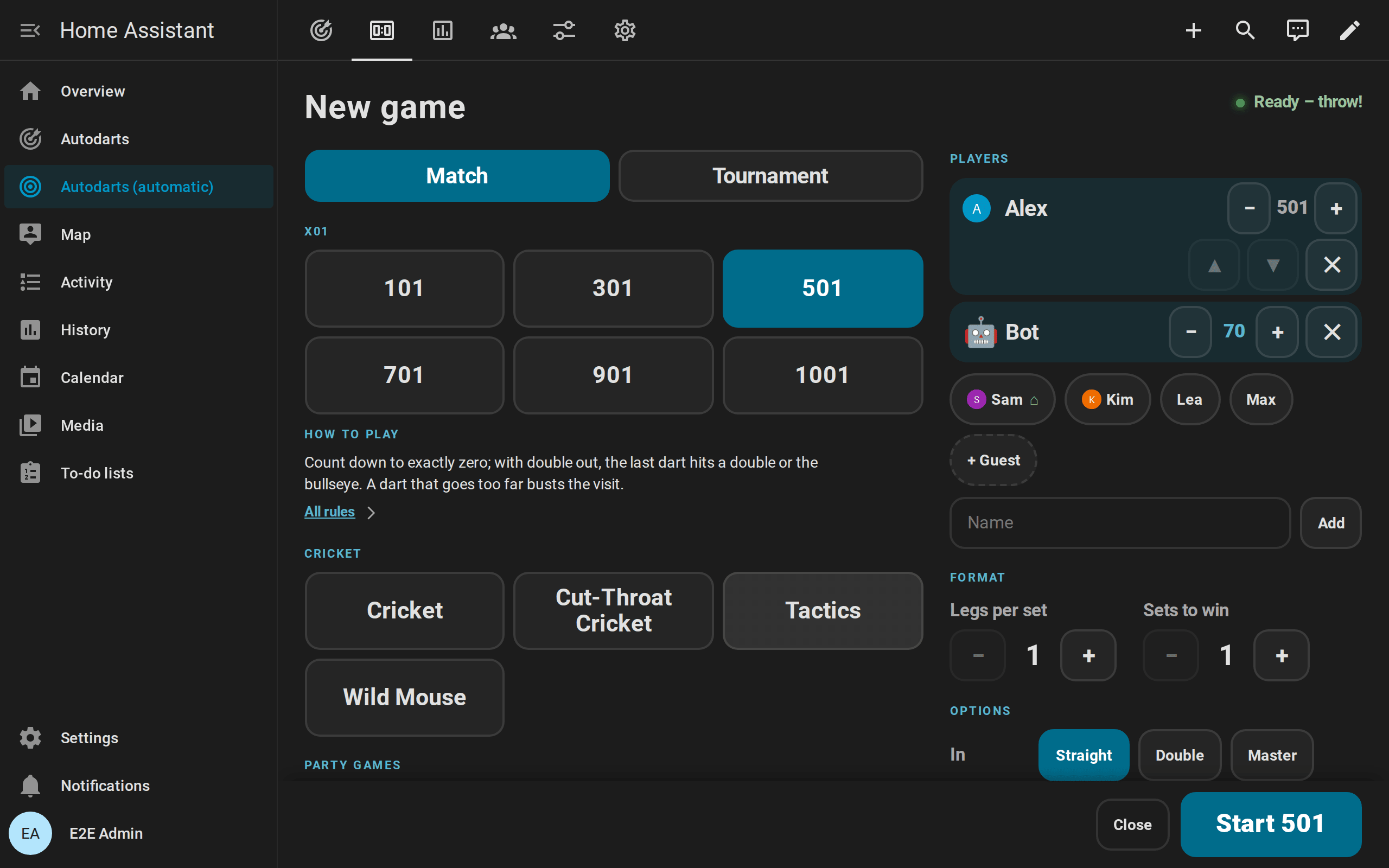
Choose the next game at the board, without a phone: tap New game below the score between games, or at the top right during a game. A few seconds after a match or a training game ends, or after its match summary, the screen also opens by itself, with the last choice ready for a rematch; a dart thrown instead closes it again.
- Game: every game of Practice game, grouped into X01, Cricket, party games and training games.
lobby_gameslimits the choice. - Players: up to four, in a party game up to eight, in throwing order. Tap a name to add the player, ▲ and ▼ to move them, ✕ to remove them. The names come from the player profiles and the player name fields; players linked to a person who is at home come first, with their picture and ⌂. Type a new name, or add a guest without one. With nobody chosen, one player without a name throws. In X01 and the Cricket games, + Bot seats the bot after the players, at level 60; − and + change its level in steps of 10, from 20 to 120, and ✕ sends it home. With the bot, up to three players play. Killer needs two players; training games take the first player only. In X01, − and + beside a player set a start score of their own in steps of 100, from 101 to 1001.
- Format: legs per set and sets to win, for a match of several players.
- Options: for X01 the in and out mode, Straight, Double or Master, the bull mode 25/50 or 50/50 and Max rounds in steps up to 50, a tournament straight or double in and out alone; and the bull-off for a match, with bull-off by distance where the board offers it. With four players of X01 or a Cricket game, Teams plays 1 and 3 against 2 and 4.
- Start: starts the game with
autodarts.start_game, and the scoreboard shows it at once. If detection is stopped, the start switches it on, because no dart counts without it; the screen says so above the button. The start stays at the bottom of the screen while the page scrolls. During a game, End game stops it after a second tap.
The screen never opens in the preview of the card editor.
Correcting and entering darts

The darts of the visit along the bottom are buttons while corrections is on, which it is by default.

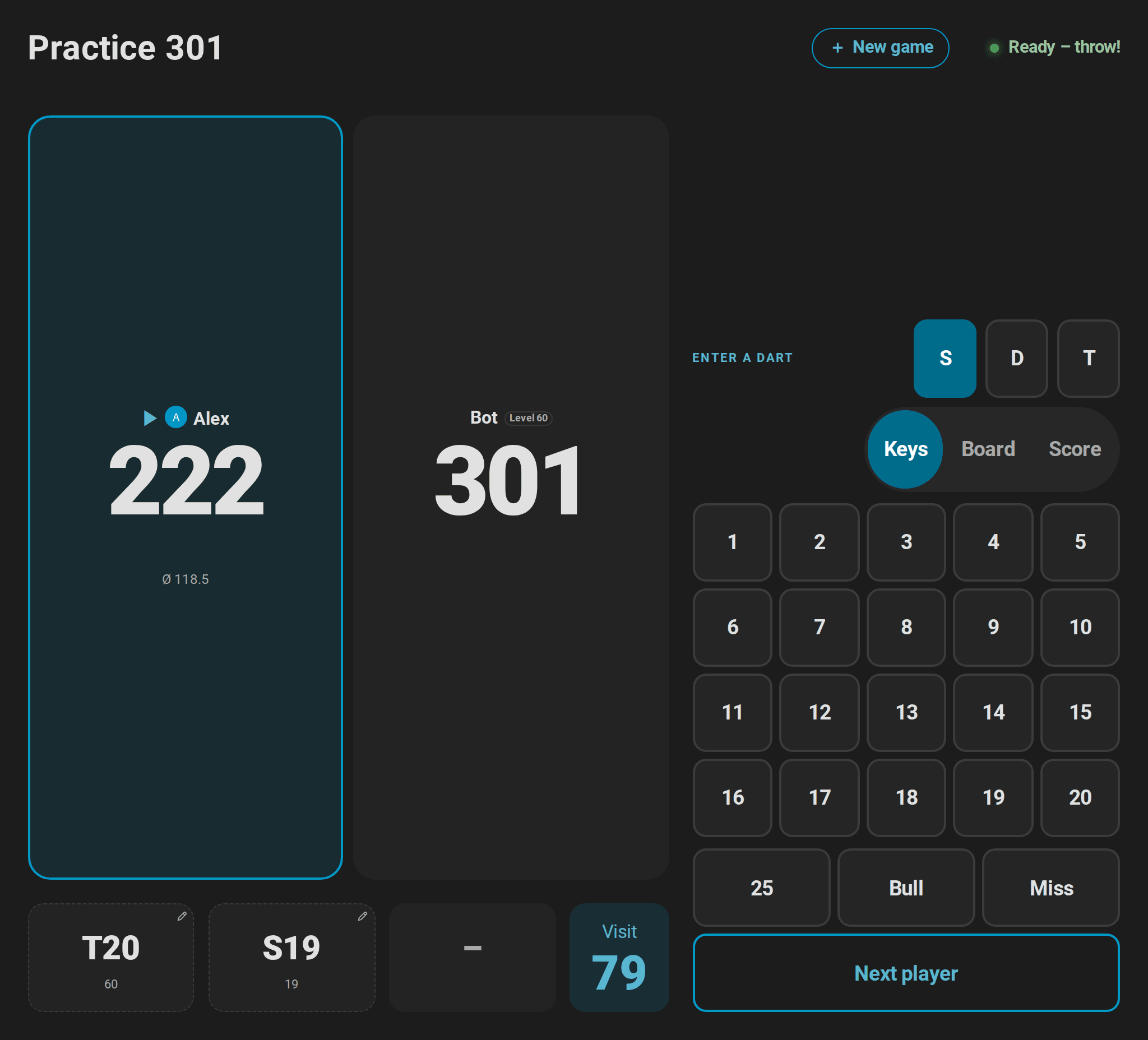
- Correct a dart: tap a dart the board read wrong. A pad opens with S, D and T, the numbers 1 to 20, 25, Bull and Miss; S, D or T is set to the dart's bed. Tap the multiplier, then the number, or 25, Bull or Miss, and
autodarts.correct_dartputs the dart there. The remaining score and the visit follow at once. A second tap on the dart, or Cancel, closes the pad. The bot's darts cannot be corrected. - Where the dart is: Keys | Board at the top of the pad switches from the keys to the board. Tap the spot where the dart is: the bed follows from it, and the dart is logged there in the dart positions. The dashed ring shows where the board saw the dart. A dart corrected with the keys has no position, because the board misread the spot as well. The board stays the pad's view until Keys is chosen, and the keypad uses it too.
- Small screens: on a card narrower than 600 pixels or a screen lower than that, such as on a phone upright or on its side, the board of a correction opens two and a half times larger around where the board saw the dart; a dart without a position and the keypad open the whole board. A round magnifier switches between the two on every screen, on a phone from the board's corner as on a map: with its plus it zooms in around the dart being corrected or else the last dart with a position, with its minus it shows the whole board. A finger held on the board shows a loupe above it, or beside it near the top edge, with the spot under the finger enlarged and a cross on it; the dart goes where the finger lets go. Two fingers zoom up to five times and move the board, and set no dart. The loupe and the fingers work on every touch screen, also a large monitor; a mouse clicks as before.
- Keypad: with
keypad: true, a keypad shows while Practice manual entry is on, for darts the board missed or a player without cameras; on a dartboard without Autodarts it always shows, unless the card setskeypad: false, for example on a TV without touch. Every tap on a bed enters a dart withautodarts.throw_dart, and the next dart starts from S again. Next player ends the visit without a takeout; it needs a second tap. While the bot is at the board, the keypad waits. - Score: in X01, Keys | Board | Score has a third view, the score of a visit: its digits in as many rows as the numbers of the keys, the score typed and what it leaves in the head, and OK, which sends
autodarts.enter_visit. A score that no visit makes from where the player stands, such as 179, or 180 before the opening double with double in, says so, and OK waits for another. A checkout asks for its darts where it could take fewer than three, and for the darts at a double where they can differ; a visit that leaves a double in reach asks for the darts at it. The answers keep the rows of the digits, so the pad keeps its height, and Cancel goes back to the score. A keyboard types the score too: when the score view opens, the pad takes the focus; digits type the score, Backspace takes back a digit, and Enter sends it, also while a digit of the pad has the focus. During a question, the digits of its answers answer it, and Escape or Backspace go back to the score. The pad keeps the focus after a score went in, so the next one can be typed at once, and while the bot throws, the keys wait as the pad does. On a narrow pad, such as on a 360 pixel phone, the three views show icons, the dots of a keypad, the rings of the board and a sum, so they keep the line of S, D and T; their names stay their labels for screen readers. - Undo: the tile Last beside the darts shows the last visit with a curved arrow while
autodarts.undo_visitcan take it back, for a wrong reading noticed after the darts were pulled or a typo on the keypad. A tap turns it red and asks Undo?, a second tap takes the visit back; it comes back to correct its darts, and the keypad's Next player orautodarts.next_playerends it again. With the keypad too, the tile is the undo, so the keypad keeps the same keys after every visit. - Marks: a dart that a tap corrects has a frame and a pencil at its top right; one entered or corrected by hand has a dashed frame, and the bot's darts are tinted in the accent color. On a dartboard without Autodarts, where every dart is entered by hand, only corrected darts get the dashed frame.
On a full-height scoreboard in landscape, the pad and the keypad sit beside the scores, so the players, the visit and the pad fit the screen together. The pad and the keypad make room for the new game screen, idle mode, the match summary and a tournament's table, and never react in the preview of the card editor.
Tournaments
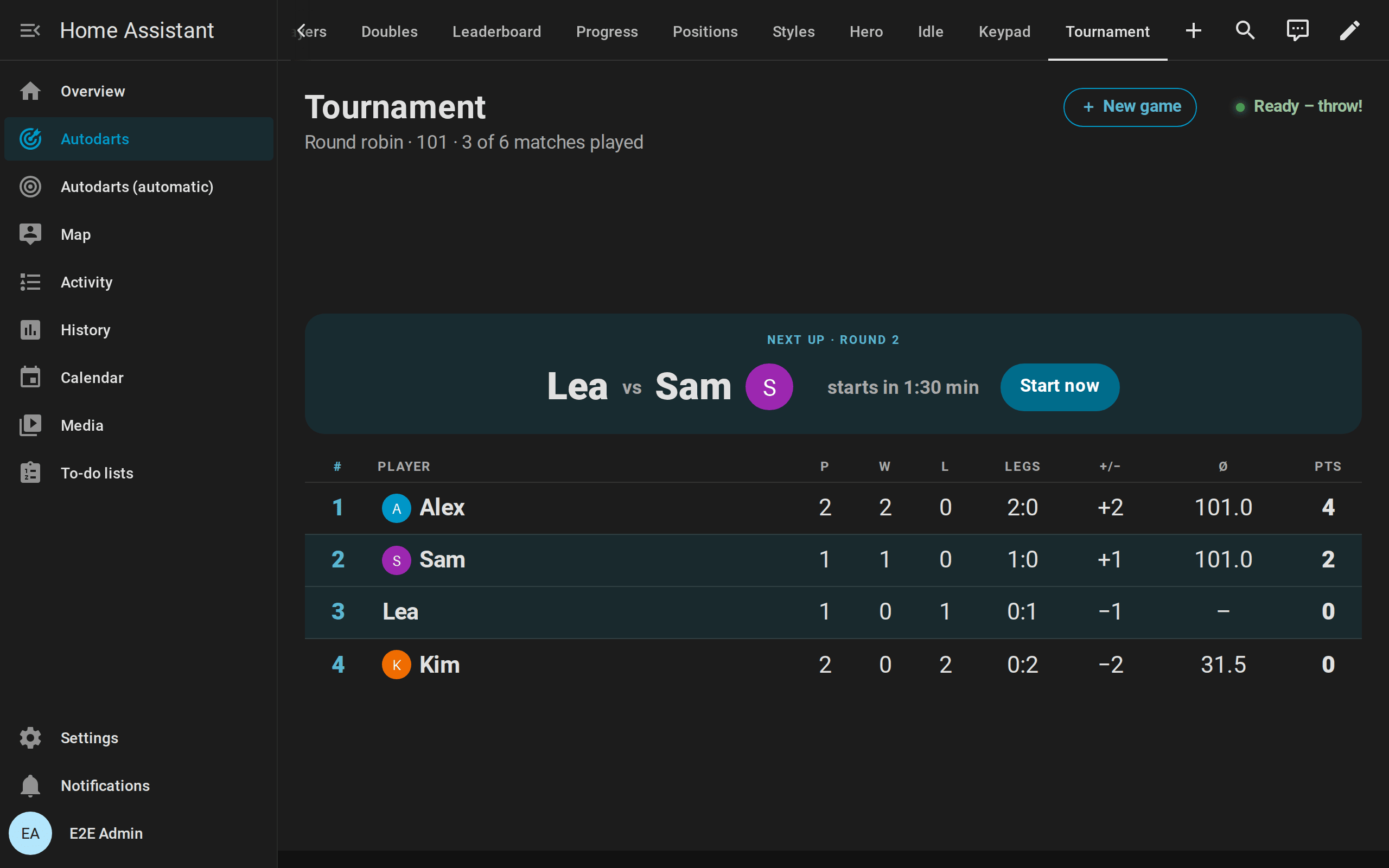
During a tournament, the scoreboard follows it:
- During a match: the title line names the round and the match, for example Tournament · Semi-final · Match 5 of 7.
- Between the matches: the summary of a match stays for Tournament summary duration (8 seconds), then, during Tournament pause, the table of a round robin or the bracket of a knockout shows, with the next match, its round and a countdown to its start. Start now starts it at once. During a tournament, the new game screen does not open by itself.
- Table: the position, matches played, won and lost, legs won and lost, the leg difference, the 3-dart average (Cricket: MPR) and the points. The players of the next match are marked, the winner of the tournament gets 🏆.
- Bracket: a column for every round, with the match for third place below the final; byes, open places and results; the next match is outlined. A player who goes on slides into the next round; on devices set to reduce motion, the places fill without moving.
- Winner: after the last match, a banner names the winner of the tournament, and the table or the bracket stays until a new match begins.
- Caller: with the caller on and
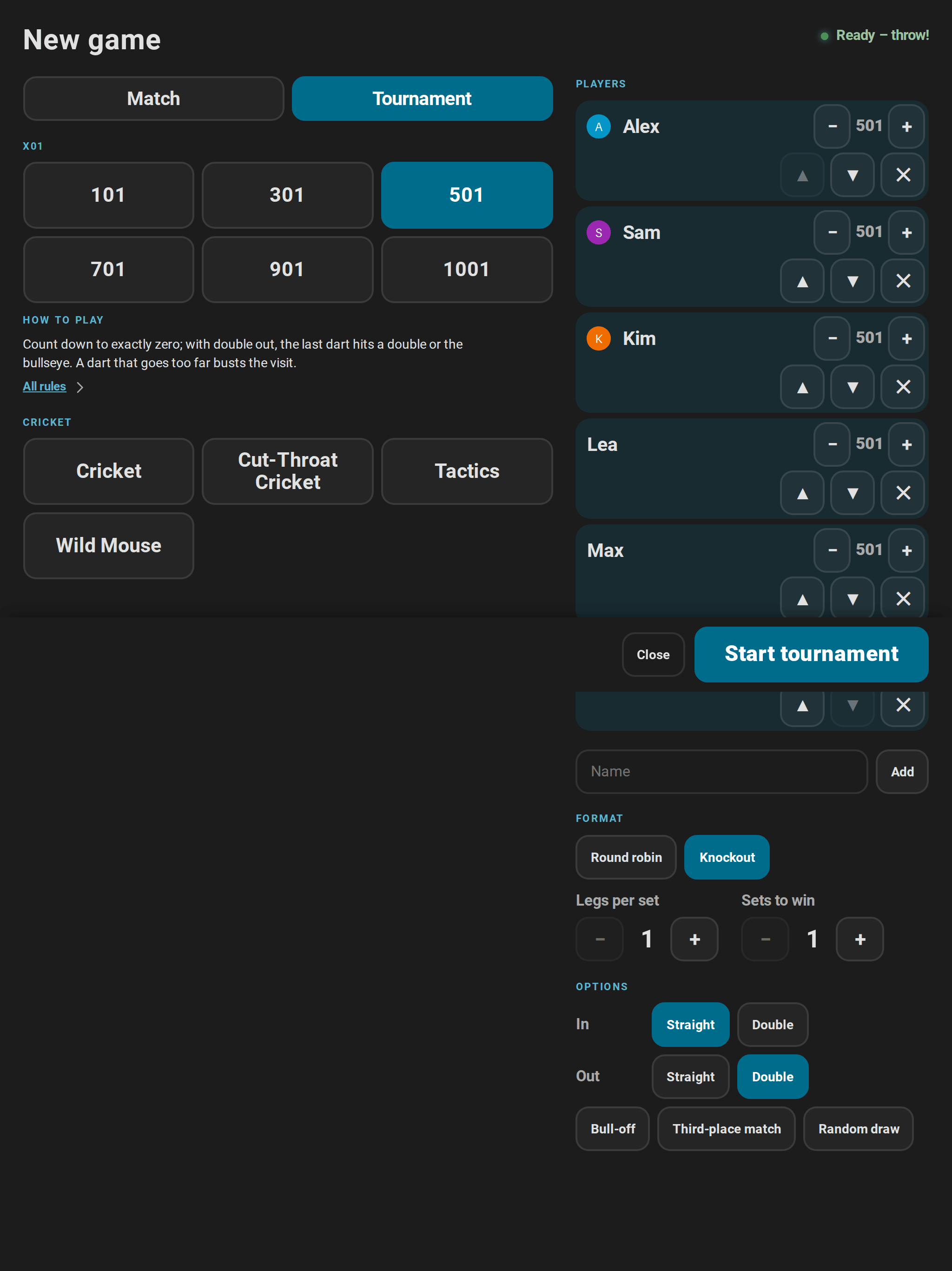
call_results, it announces every match as it starts, "Next match: Alex against Sam", and the winner of the tournament. - New game screen: Tournament switches the screen to a tournament of up to eight named players: X01, with start scores for a handicap, or a Cricket game, round robin or knockout, legs and sets, the rules, the match for third place and a random draw. Start tournament starts it with
autodarts.start_tournament. During a tournament, Stop tournament ends it and its game after a second tap. Starting a new tournament while one is played stops that one first: the screen says so, and the start needs a second tap. - Idle mode: the panel
tournamentshows the table or the bracket of the tournament being played or just finished.
Idle mode
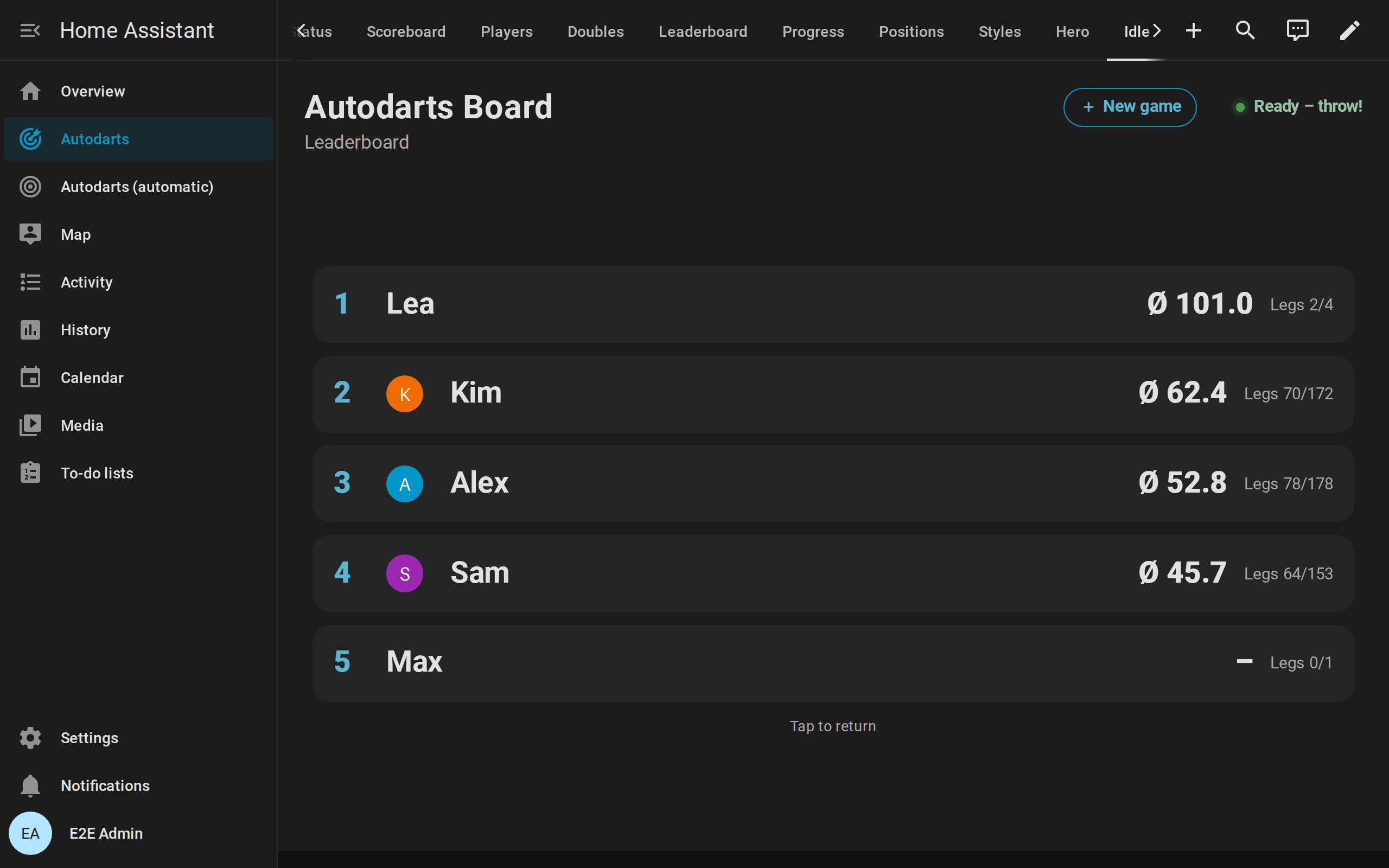
When no game runs, or a match or training game is decided, and nobody throws or taps for idle_after seconds (3 minutes), the scoreboard shows these panels in turn, one every idle_interval seconds:
| Panel | Shows |
|---|---|
tournament |
The table or the bracket of the tournament being played or just finished |
leaderboard |
The five best players by 3-dart average, then by legs won, with their pictures |
records |
The personal bests of the board and the longest training streak |
today |
Today's darts towards the daily goal, the 3-dart average, highest visit and 180s of the session, and the streak |
last_match |
The last match of several players: the game, when it ended, and everybody's legs, or sets in a match of sets, and average, with a trophy for the winner, for both partners of the team that won a team match |
clock |
The time and the date |
Panels with nothing to show are skipped. A dart, a new game or a tap anywhere ends idle mode; a new game screen you opened by hand comes back as you left it, with the game and the players chosen. The screen changes only when the next panel is due or the clock's minute ends. On devices set to reduce motion, the panels change without fading.
Options
| Option | Values | Default | Description |
|---|---|---|---|
device_id |
device | first board | The board to show |
title |
text | board name | Title between games; during a game the title names the game |
full_height |
boolean | false |
Fill the height of the screen, for a view in panel mode |
show_visit |
boolean | true |
Show the darts of the current visit |
show_status |
boolean | true |
Show the board status |
caller |
boolean | false |
Switch the caller on: the screen announces visits, what a player requires, busts and game shots |
call_scores |
boolean | true |
Call the score of every visit (Cricket: its marks) |
call_checkouts |
boolean | true |
Call what the next player requires when a checkout is possible |
call_results |
boolean | true |
Call busts and game shots |
call_sounds |
boolean | true |
Play a fanfare for a 180 |
lobby |
boolean | true |
Offer the new game screen |
lobby_games |
list of games | every game | The games the new game screen offers, for example ["501", cricket, killer] |
idle |
boolean | true |
Switch idle mode on |
idle_after |
seconds, 10–3600 | 180 |
Time without darts and taps before idle mode starts |
idle_interval |
seconds, 3–120 | 10 |
Time each panel shows |
idle_panels |
list of panels | every panel | The panels of idle mode, in this order: tournament, leaderboard, records, today, last_match, clock |
show_summary |
boolean | true |
Show the match summary when an X01 or Cricket match ends |
summary_seconds |
0–600 | 0 |
How long the summary stays, in seconds; 0 keeps it until the next game starts |
celebrations |
boolean | true |
Celebrate a 180, a visit of 100 or more, nine marks, a game shot and the match with confetti and a glow (scoreboard) |
corrections |
boolean | true |
A tap on a dart of the visit corrects it; a tap on the last visit beside the darts takes it back while possible |
keypad |
boolean | false |
Show the keypad for darts entered by hand while Practice manual entry is on; on a dartboard without Autodarts it shows unless false is set |
accent_color |
color | theme primary color | The player at the board, routes and the visit score |
In the editor, the four call_… options wait in the collapsed section Caller options; the new game screen, idle mode, and correcting and entering darts have collapsed sections of their own.
type: custom:autodarts-scoreboard-card
full_height: true
caller: true
lobby_games: ["301", "501", cricket, killer]
idle_after: 300
idle_panels: [leaderboard, today, clock]
summary_seconds: 60
Match summary
When an X01 or Cricket match of several players ends, the scoreboard and the live card sum it up: a column for every player, the winner's highlighted, with the result in the first row.
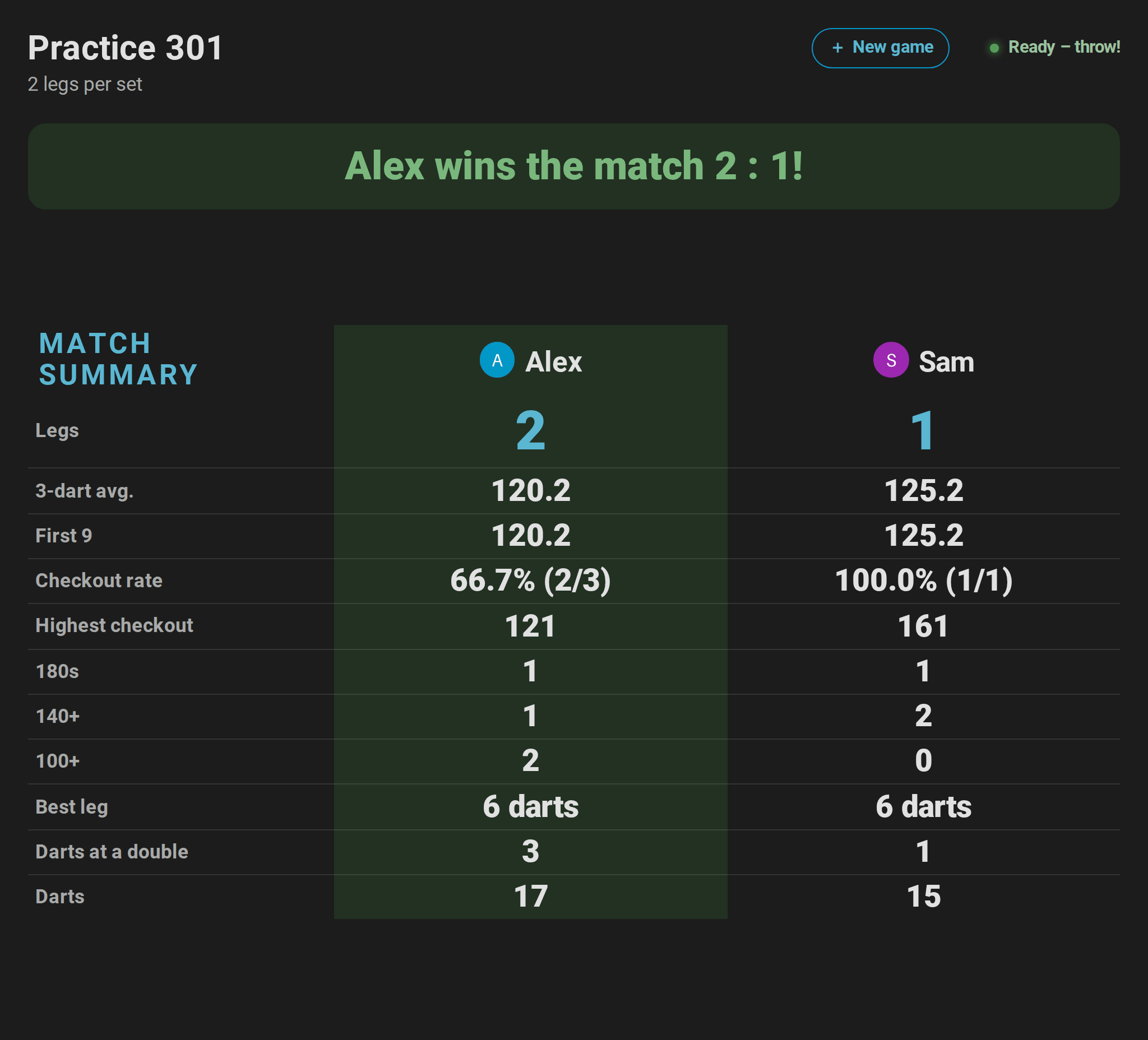
- X01: legs (and sets), 3-dart average, first-9 average, checkout rate with the legs checked out and the darts at a double, highest checkout, 180s, 140+ and 100+ visits, best leg in darts, darts at a double and all darts. Without double out, the checkout rate and the darts at a double are left out.
- Cricket: legs (and sets), marks per round, marks, best leg in darts and all darts.
- How long: until the first dart of the next game, or
summary_secondsafter the card first showed it. Then the players and the result come back, and on the scoreboard the new game screen opens a few seconds later. While the summary shows, the new game screen opens only with a tap, and idle mode can take over after its idle time.show_summary: falseswitches the summary off. Between the matches of a tournament, the table or the bracket follows after Tournament summary.
Party games keep their scores on screen. The numbers come from the summary attribute of the practice remaining score; how they are counted.
Doubles card
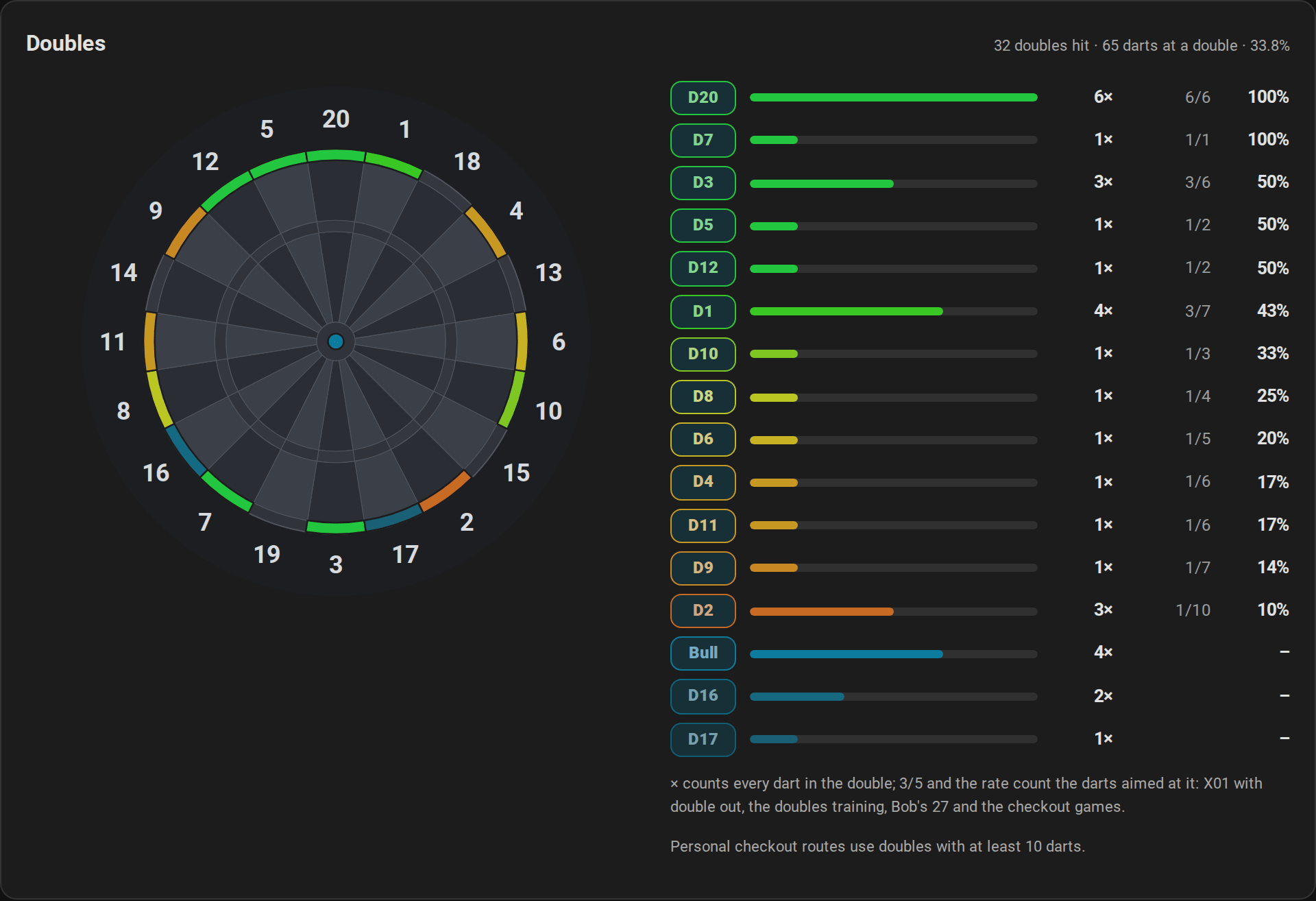
custom:autodarts-doubles-card shows the doubles analysis: every double hit on the double ring of the board, colored by its hit rate from red (rarely hit) to green (about every second dart) where darts were aimed at it, and in the accent color by how often it was hit where not. The list below shows every double, the best rate first, with how often it was hit by any dart, the hits and darts aimed at it, and its hit rate. The favorite double is filled. With player, it shows the doubles of one named player instead of everybody's; a name without a profile gets a hint to check its spelling.
Options
| Option | Values | Default | Description |
|---|---|---|---|
device_id |
device | first board | The board to show |
title |
text | Doubles | Card title |
player |
text | everybody | A player name, for that player's doubles. The editor lists the named players and takes any other name |
accent_color |
color | theme primary color | Labels |
Players card
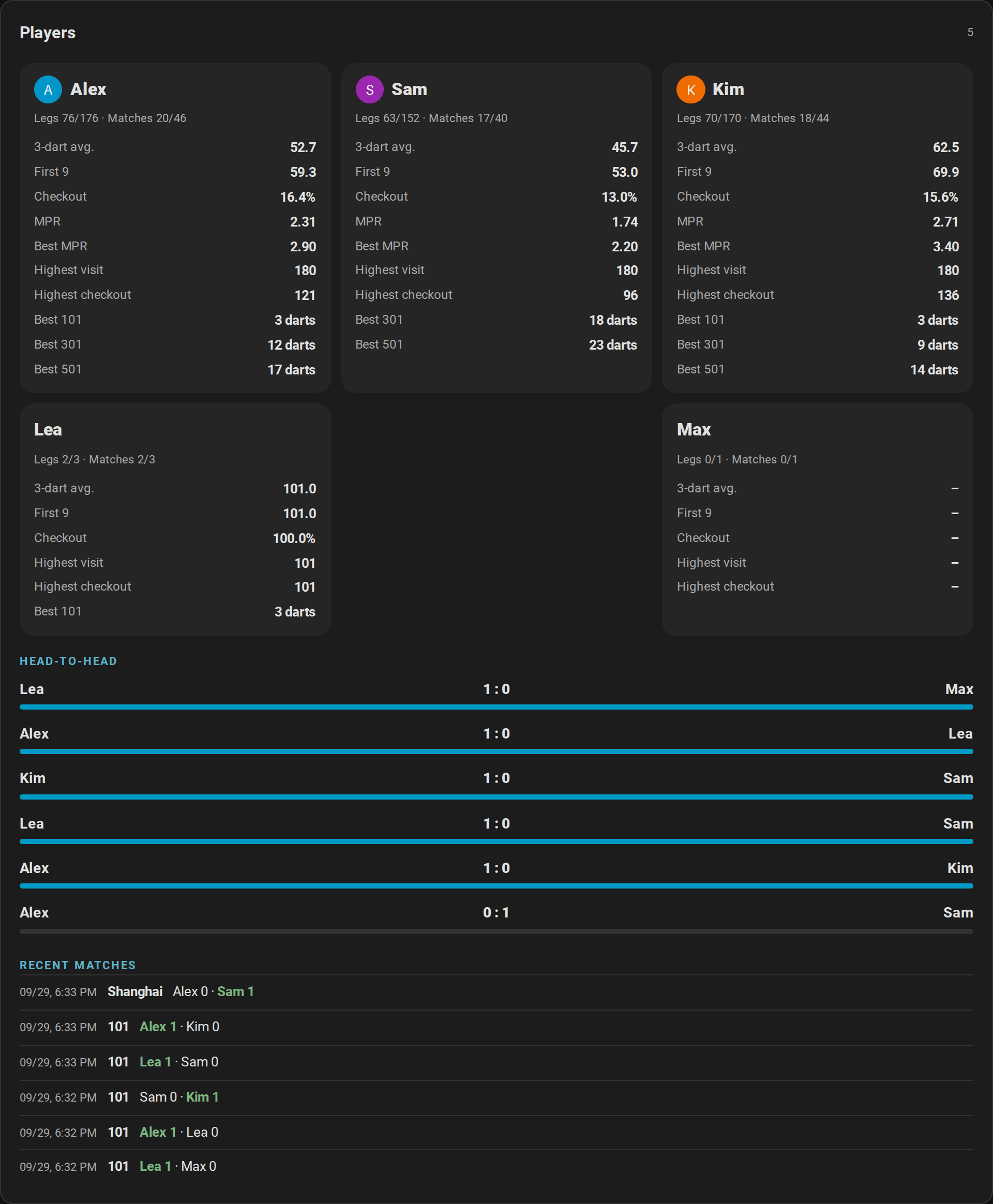
custom:autodarts-players-card shows the player profiles: a tile for every named player with legs and matches won, 3-dart average, first 9, checkout rate, marks per round and the best marks per round of a Cricket leg, highest visit and checkout and the fewest darts per start score. Players linked to a person show the person's picture. Below, the head-to-head records with a balance bar and the recent matches with their result and the winner in bold: the legs every player won, or the sets in a match of sets, such as Cricket · Sets. On request, an Export button downloads everything as a file; only administrators see it, as the export is an action for administrators.
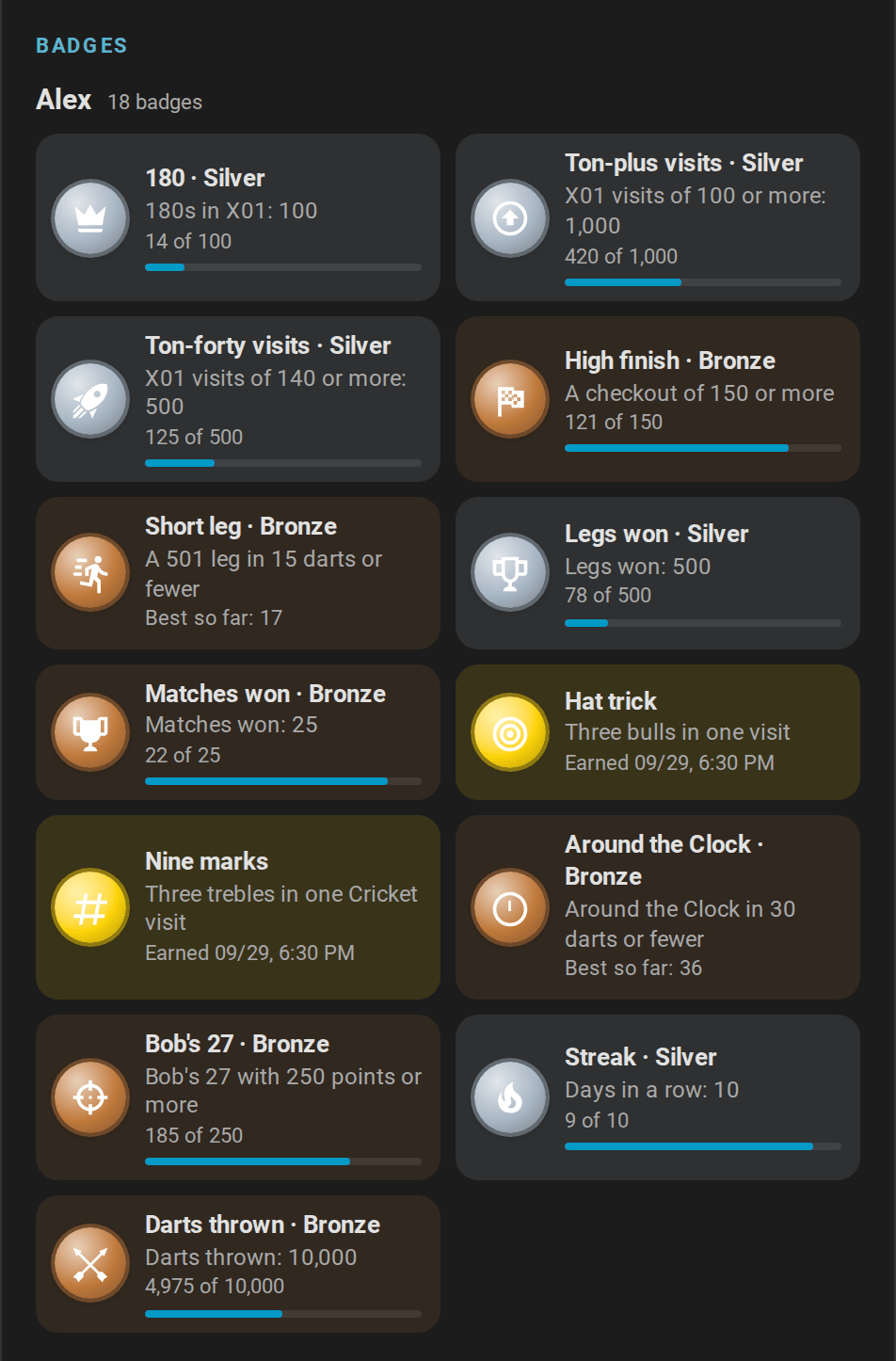
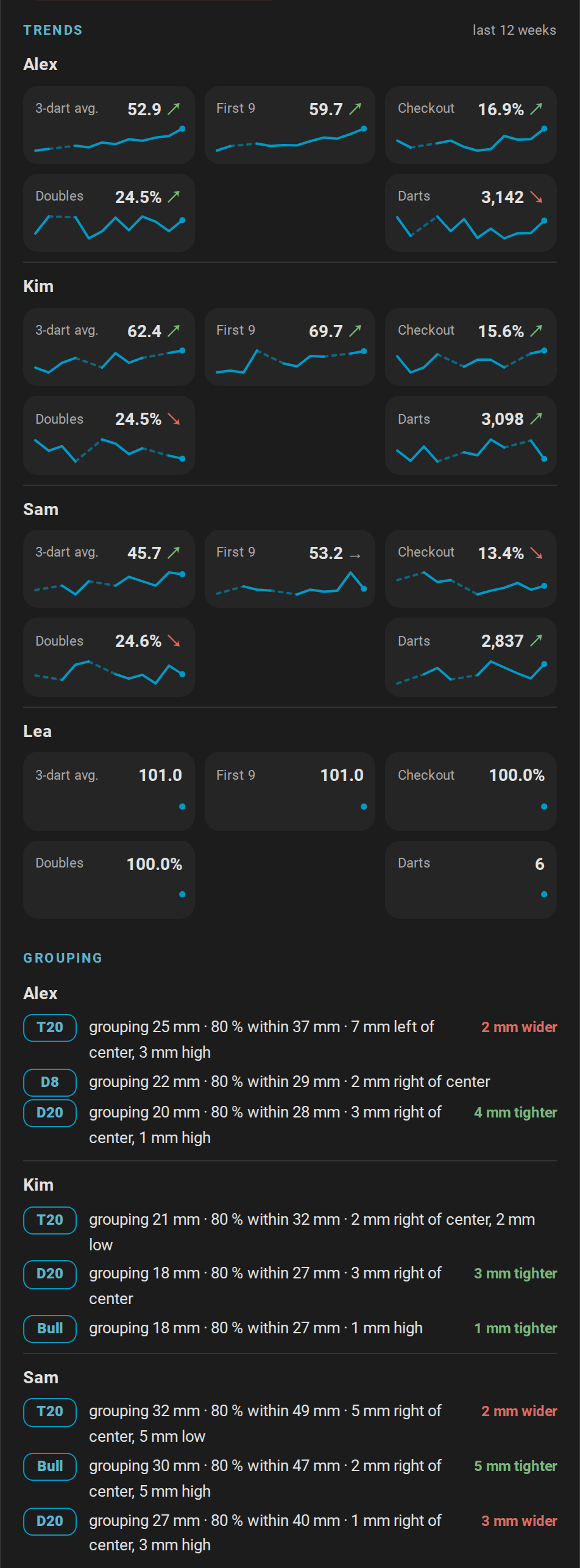
- Badges: every player's achievements. An earned badge shows its tier in bronze, silver, gold or platinum, the next goal and how far the player has come; a locked badge is grayed out, with its progress where it can be counted. A player's gallery shows the badges earned and the three goals closest to being earned; All 18 badges ▾ opens the rest, and Show fewer closes them again.
- Trends: for every player who practiced in the weeks shown, a tile per figure: 3-dart average, first 9, checkout rate, doubles rate and darts over the weeks, a line of the weekly values, and an arrow that compares the newer half of the weeks with the older half (↗ better, ↘ worse, → about the same). Weeks without practice are a dashed stretch of the line; without both halves to compare, the tile shows no arrow.
- Grouping: where each player's darts land around the beds they aimed at most, in millimeters, with the change of the newer darts. How the grouping is measured.
Options
| Option | Values | Default | Description |
|---|---|---|---|
device_id |
device | first board | The board to show |
title |
text | Players | Card title |
show_head_to_head |
boolean | true |
Show the head-to-head records |
show_matches |
boolean | true |
Show the recent matches |
show_badges |
boolean | true |
Show the badges |
show_locked |
boolean | true |
Show the next goals and, on demand, every locked badge; without them, players without a badge are left out |
show_trends |
boolean | true |
Show the trends |
trend_weeks |
4–12 | 12 |
Weeks in the trends |
show_spread |
boolean | true |
Show the groupings |
export |
boolean | false |
Show an Export button. It exports the sessions, matches and profiles with autodarts.export to autodarts/exports in the media folder and downloads the file through Home Assistant with your login. Exports contain player names, so only administrators can export and download; for other users, such as the one of a wall tablet, the export fails. |
export_format |
csv, json |
csv |
Format of the export; CSV comes as a ZIP file with one table each |
accent_color |
color | theme primary color | Labels, the balance bars, progress and trend lines |
Leaderboard card
custom:autodarts-leaderboard-card ranks the records of all named players. The leader of each record gets the crown, the next places follow.
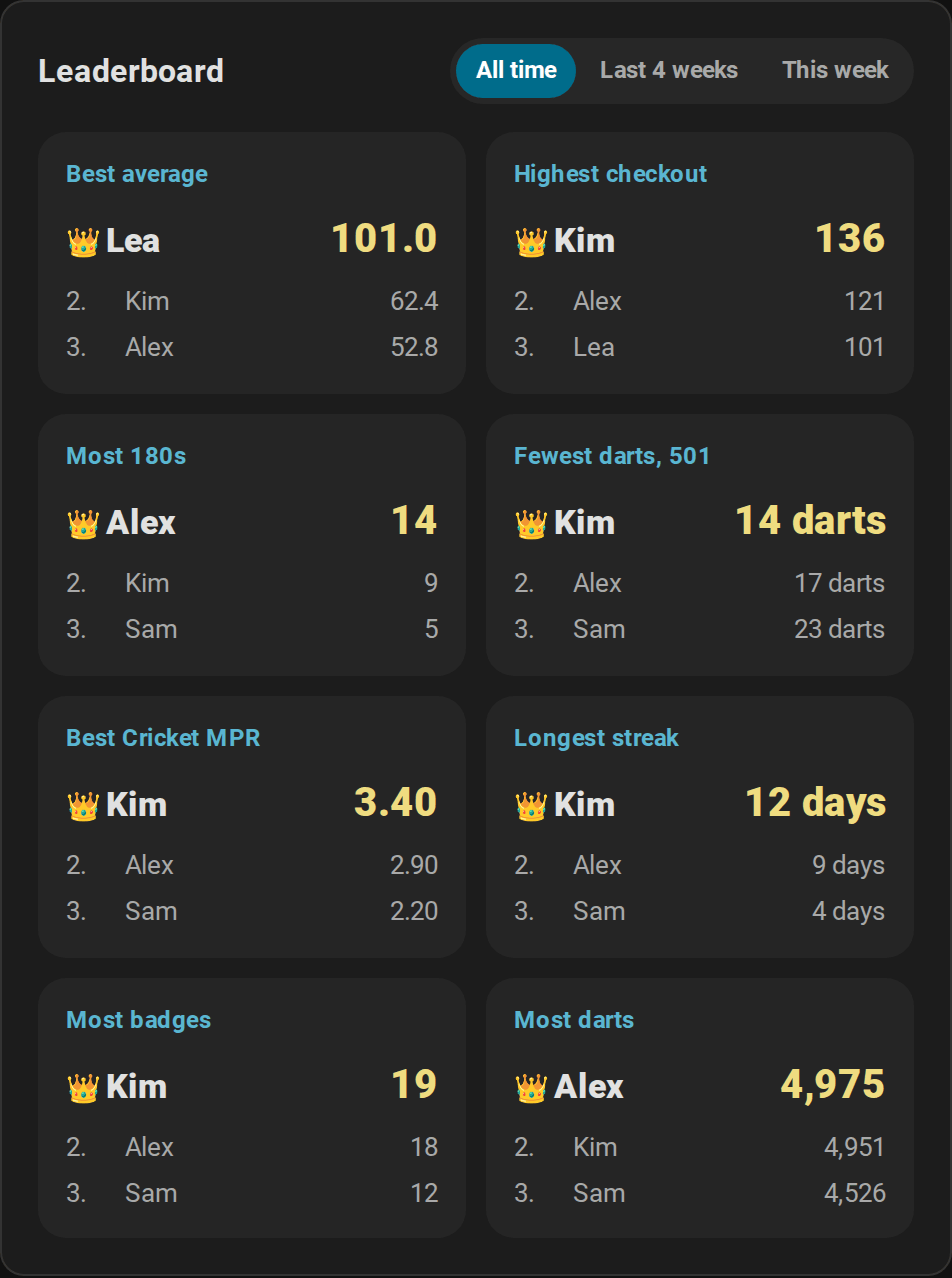
| Record | All time | Last 4 weeks, this week |
|---|---|---|
| Best average | The player's 3-dart average in X01 | The average of the X01 legs that ended in the period |
| Highest checkout | The highest checkout with double out | The same, in the period |
| Most 180s | X01 visits that scored 180 | The same, in the period |
| Fewest darts, 501 | The fewest darts of a won 501 leg with double out | The same, in the period |
| Best Cricket MPR | The best marks per round of a won Cricket leg | The same, in the period |
| Longest streak | The longest run of days with darts | – |
| Most badges | Achievement tiers unlocked | Tiers unlocked in the period |
| Most darts | Darts thrown in practice and training games | The same, in the period |
A period covers whole weeks from Monday: This week the current week, Last 4 weeks the current week and the three before. Players share a place when their values are equal. The switch at the top changes the period until the card's configuration changes.
Options
| Option | Values | Default | Description |
|---|---|---|---|
device_id |
device | first board | The board to show |
title |
text | Leaderboard | Card title |
period |
all, month, week |
all |
All time, the last four weeks or this week |
show_period |
boolean | true |
Show the period switch |
limit |
1–5 | 3 |
Places shown per record |
accent_color |
color | theme primary color | Labels and the period switch |
type: custom:autodarts-leaderboard-card
period: month
limit: 5
Automatic dashboard
Instead of arranging the cards yourself, let the integration build a whole dashboard:
- Go to Settings → Dashboards → Add dashboard.
- Choose Autodarts.
For every board, the dashboard gets up to six views, which update themselves when you add a board or enable entities:
| View | Contents |
|---|---|
| Live | The live card across the full width, so the board and the game stay in sight on a phone too |
| Scoreboard | The scoreboard card across the whole screen, for a tablet or TV at the board |
| Training | The training card with the personal bests, the doubles card, the daily goal with darts today, the streak and the last personal best, darts per day for the last 30 days (from long-term statistics, which Home Assistant compiles hourly), the 3-dart average of the last 7 days, practice legs per day, the first 9 average, checkout rate and doubles rate of the practice game, and the training settings: starting sessions automatically and ending them after a pause |
| Players | The players card and the leaderboard, once the first named player has a profile |
| Game settings | The practice game controls with teams and the Golf and Count-Up options, the player names, their start scores and the tournament with its settings and buttons, for what the scoreboard's new game screen leaves out |
| Board | The board status card, the board settings, the Board Manager update and the share of darts the board corrected; a dartboard without Autodarts has no such view |
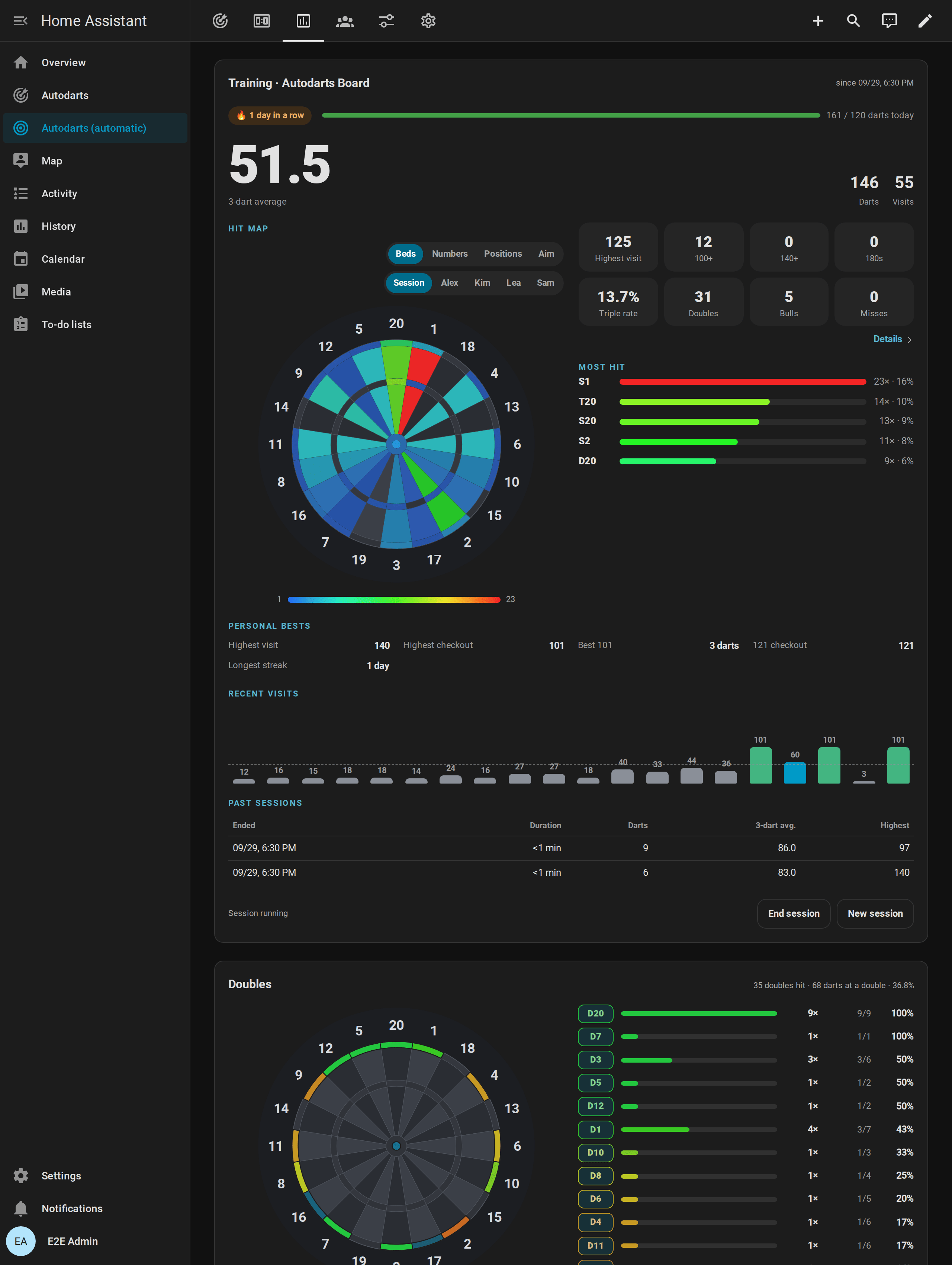
The game settings also have Bull-off by distance among the practice rules and Tournament summary duration among the tournament settings. Most games need none of them: the scoreboard's new game screen sets the game, the players and the rules.
In YAML, the whole dashboard is one line; device_id, title and scoreboard are optional. scoreboard sets options of the scoreboard view's card: caller, keypad, corrections, idle, lobby_games and idle_panels, as described for the scoreboard card. Options you leave out keep the card's defaults.
strategy:
  type: custom:autodarts
  device_id: 0123456789abcdef   # only this board
  title: Darts
  scoreboard:
    caller: true
    keypad: true
    lobby_games: ["501", cricket, killer]
    idle_panels: [leaderboard, clock]
To choose the board, the title or the scoreboard's options later, open the dashboard's menu (⋮) → Edit dashboard. Home Assistant shows the dashboard's own editor, with the scoreboard's options in the section Scoreboard view:
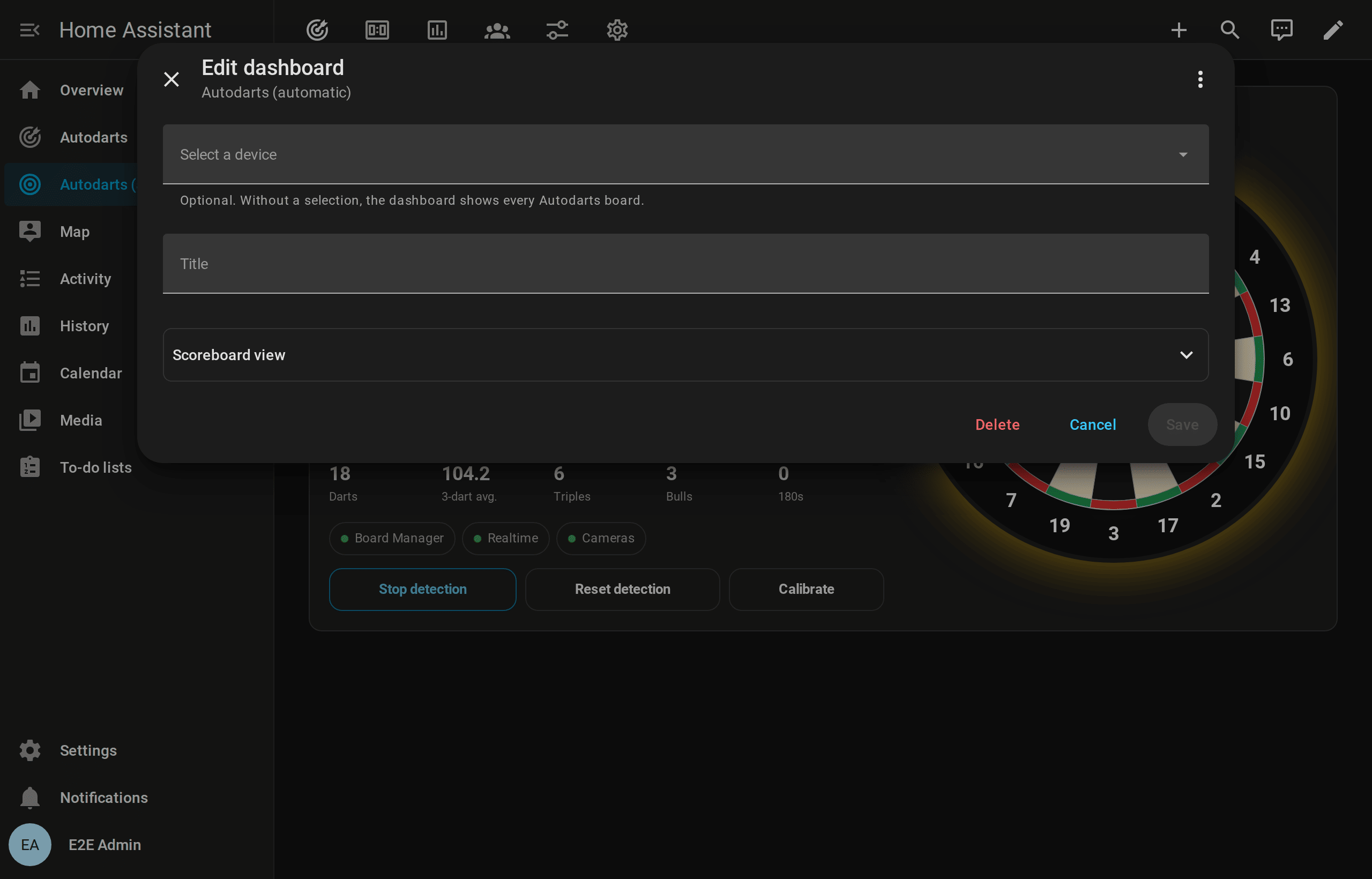
If the chosen board is removed from Home Assistant, the dashboard says so instead of showing empty views; choose another board or clear the choice to show every board. To customize the views themselves, choose Take control in the menu (⋮) of that editor. Home Assistant then turns the generated views into a normal dashboard that you can edit; it no longer gets the views of later releases, so prefer the dashboard's own settings where they are enough.
Card editor
All options can be set in the visual editor. It is a form of Home Assistant, so it looks and works like the editors of the built-in cards:
- The device picker offers only Autodarts boards.
- Switches show their default until you change them; lists name their default below the field.
- The caller options, the new game screen and idle mode of the scoreboard wait in collapsed sections; the doubles card offers the named players.
- An option the form cannot show, such as a mistyped
layout, sends the editor to the code view with a message that names it.
Colors
accent_color and highlight_color use Home Assistant's color picker. Choose a theme color such as Primary, Accent or Red, which follows your theme, or type any CSS color, for example #00e5ff, rgb(0 229 255) or var(--accent-color). A theme variable counts without a fallback only, as var(--name). An empty field, or a value that is not a color, uses the default.
Text in the accent color is mixed with your theme's text color, and buttons filled with it are darkened, so both stay readable with the light primary colors of Home Assistant's default themes.
Accessibility
The cards work with a keyboard, with a screen reader and without animations:
- Keyboard: every control is a button with a visible focus ring in the accent color. The board of the live card opens its details with Enter or Space, the statistics of the training card with their own button. The calibration buttons of the status card keep the focus while they ask for confirmation. On the new game screen and the pad of the scoreboard, a button keeps the focus after it is pressed, and the score view of the pad takes the focus itself where its keys come and go, so the digits and Enter of a keyboard always reach it; and a name being typed keeps its text and caret while the screen updates; Enter adds the name you typed. When the scores of a full-height scoreboard scroll, on a phone with the pad open, the keyboard reaches and scrolls them too.
- Screen readers: buttons without a text have a label, for example "Move Alex up" on the new game screen. The live board reads the darts of the visit, such as "Dartboard with the current visit: T20, S5, Bull", the chart of recent visits reads their scores, a dart of the scoreboard's visit its bed, points and what a tap does, Cricket marks read as words and Killer's hearts as lives. The player at the board is marked as the current one and the winner is named, not only colored. The status of the board and the winner of a match are announced when they change, and only then; the new game screen reads out a new stepper value and what holds the start back. The detection toggle of the status card is a switch, and the caller button and the options of the new game screen say whether they are on.
- Reduced motion: when the device asks for reduced motion, hit beds stop blinking and the latest dart stops pulsing; both stay highlighted. The panels of idle mode change without fading, and the places of a tournament bracket fill without sliding.
- Color and contrast: the cards take their colors from your theme, light or dark, and never rely on color alone: the board status comes with a text, the heatmap shows the count of a bed on hover or tap, and the Cricket marks are symbols. Text in the accent color, gray text on tinted tiles and the colors of the doubles card are mixed for a contrast of at least 4.5:1; players who are out are faded by color, not transparency. In Windows' high contrast mode, pressed buttons get an outline. Choose an
accent_colorand ahighlight_colorwith enough contrast to your theme, or use a high-contrast theme, which the cards follow. - Touch: on a touch screen, the small buttons, such as New game, the caller, the period switch and Export, are at least 40 pixels high.
- Hints on a tap: what a mouse shows as a tooltip, a tap with a finger or a pen shows in a small bubble over the card, without moving anything: the darts of a last visit on the live card, a visit in the training chart and its average line, a trend arrow on the players card, the column names of a tournament's table, a double on the doubles card, a camera's dot on the status card and the hint of a setup. Another tap, Escape or five seconds close it. Controls such as the caller do what they do; their tooltip stays for the mouse.
- Language: the cards follow the language of your Home Assistant profile, and numbers, dates and times its formats.
- Checked with every change: axe-core checks every card in a real browser against WCAG 2.1 at levels A and AA, on a laptop and a phone, in the light and the dark theme (accessibility check).
Tips
- Wall tablet: the live card with
layout: verticalfills a portrait screen. The board scales with the card. For a landscape screen at the board, use the scoreboard. - Combine: put the live card and the training card next to each other in a sections view with two columns.
- Several boards: add one card per board and choose the board in each card's editor.
- Cached old version: after an update, the card URL changes automatically. If a browser still shows an old card, reload the page. In the companion app, use Settings → Companion app → Debugging → Reset frontend cache.
- Download size: all cards come in one file, compressed to about 150 KB. A browser downloads it on its first visit and after an update and keeps it until the next one, so only the first load of a dashboard waits for it on a slow connection.