Configure
Three things make Paperless documents show in Nextcloud's search: a Paperless account that may view them, whose API token goes into the settings of the app; the documents as files of one Nextcloud account, the archive account; and shares of that archive with the users who may find them. This page sets up all three, once the app is installed.
---
config:
  flowchart:
    wrappingWidth: 400
    nodeSpacing: 30
---
flowchart TB
    accTitle: Setting up the search
    accDescr: Install the app. In Paperless-ngx, create an account that may read the documents and an API token for it. In the administration settings of Nextcloud, enter the URL, the token and the archive account, select Paperless runs in my local network when Nextcloud reaches Paperless at such an address, and select Test connection and save. When Paperless answers, the settings are saved; otherwise nothing is saved and the message says what to correct. The archive account shares its archive read-only with the users who may find its documents, and they find them under Paperless documents in Nextcloud's search, with Search connected services switched on.

    install["1 · Install the app"]
    token["2 · In Paperless-ngx: an account<br>that may read the documents,<br>and its API token"]
    save["`3 · In the administration<br>settings: URL, token,<br>archive account and, in a<br>local network, its switch, then<br>**Test connection and save**`"]
    answers{"Paperless<br>answers?"}
    fix["Nothing is saved;<br>the message says<br>what to correct"]
    share["4 · The archive account<br>shares its archive<br>read-only"]
    search["`5 · Search with<br>**Search connected<br>services** on`"]
    found(["Paperless documents<br>in the results"])

    install --> token --> save --> answers
    answers -- "yes, saved" --> share --> search --> found
    answers -- "no" --> fix
    fix -.-> save

    classDef person fill:#f59e0b2e,stroke:#f59e0b,stroke-width:2px
    classDef done fill:#16a34a2e,stroke:#16a34a,stroke-width:2px
    classDef no fill:#dc26262e,stroke:#dc2626,stroke-width:2px
    class install,token,save,share,search person
    class found done
    class fix no
How it works
---
config:
  flowchart:
    wrappingWidth: 400
    nodeSpacing: 30
---
flowchart TB
    accTitle: How a search finds its documents
    accDescr: Nextcloud's search sends the term, such as invoice, to Paperless Unified Search, which searches the OCR text in Paperless-ngx. Paperless answers with the documents that match, such as document 412. The app looks for a file of the archive account with the marker [P412] in its name among the files that the searching user can open. With such a file, document 412 is a result that opens the file in Nextcloud; without one, it is left out.

    search(["Nextcloud's search"])
    app["Paperless Unified Search"]
    paperless[("Paperless-ngx")]
    file{"A file of the archive account<br>with [P412] in its name<br>that the user can open?"}
    result(["Document 412 in the results,<br>opens that file in Nextcloud"])
    left(["Left out"])

    search -- "invoice" --> app
    app -- "searches the OCR text" --> paperless
    paperless -- "document 412, …" --> file
    file -- "yes" --> result
    file -- "no" --> left

    classDef app fill:#526cfe2e,stroke:#526cfe,stroke-width:2px
    classDef yes fill:#16a34a2e,stroke:#16a34a,stroke-width:2px
    classDef no fill:#dc26262e,stroke:#dc2626,stroke-width:2px
    class app app
    class result yes
    class left no
- Nextcloud forwards an enabled external-search query to Paperless-ngx.
- Paperless returns results from its native OCR/full-text index, with only the fields that a result shows: not the whole OCR text of each document, only the excerpt around the term.
- The app maps each Paperless document ID to a synchronized file of the archive account whose name contains the unique marker
[P<ID>], for example[P123], with one search of Nextcloud's file cache for all documents of a page. The archive account is the one that owns the synchronized files: the account of Paperless Sync, or the one of the settings. - A result is returned only if the current Nextcloud user can access that file: the archive account itself, or a user it shared the file with. A file with the marker in its name that belongs to another account stands for no document.
- A page of results holds as many results as Nextcloud asks for while Paperless has more: when documents that the user can't open rank first, the app asks Paperless for its next pages, up to four pages of 25 hits per search, so that Paperless results still show and Load more results keeps working.
- Each result shows the preview of its file, or the icon of its type, and below its title the date of the document in the language of the user, its correspondent, its type and the words around the term, as What a result shows describes.
- Selecting a result opens the synchronized file in Nextcloud, not Paperless. Browsers use Nextcloud's
/f/{fileId}viewer route. The official iOS app receives its nativenextcloud://open-filedeep link, while Android receives the file ID and user-relative path required by its in-app viewer.
Who sees document 412, when paperless is the archive account and has shared its archive with jamie:
---
config:
  flowchart:
    wrappingWidth: 400
    nodeSpacing: 30
---
flowchart TB
    accTitle: Who sees document 412
    accDescr: The archive account paperless owns the file invoice [P412].pdf and sees document 412. It shares the file read-only with jamie, who sees document 412 as well. sam has a file of sam's own named Copy [P412].pdf; it isn't a file of the archive account, so sam sees no document.

    subgraph owner ["paperless, the archive account"]
        own["… invoice [P412].pdf"]
    end
    subgraph reader ["jamie"]
        shared["… invoice [P412].pdf<br>shared read-only"]
    end
    subgraph other ["sam"]
        copy["Copy [P412].pdf<br>a file of sam's own"]
    end
    seen1(["✓ document 412"])
    seen2(["✓ document 412"])
    unseen(["✗ no document"])

    own -- "share" --> shared
    own --> seen1
    shared --> seen2
    seen2 ~~~ copy
    copy --> unseen

    classDef yes fill:#16a34a2e,stroke:#16a34a,stroke-width:2px
    classDef no fill:#dc26262e,stroke:#dc2626,stroke-width:2px
    class seen1,seen2 yes
    class unseen no
This app does not synchronize documents itself. The companion app Paperless Sync does, natively and with settings of its own, and any other synchronization that writes the marker into the file names works as well. Both apps use the same stable [P<ID>] marker and are designed to work together without coupling their release cycles.
A Paperless account for the search
The search asks Paperless with the API token of one Paperless account, and Paperless answers with the documents that this account may view, and no others. The account thus sets the limit of what anyone in Nextcloud can find: a document that it can't view never shows, whoever searches. Give it a Paperless account of its own that may only view documents, so that a token that leaks can change nothing.
- The account. As an administrator of Paperless, open Users & Groups and add a user, such as
nextcloud, that is neither a superuser nor staff, with the permission View for Documents and no other. The search reads nothing else: it asks for the documents of a term and, of each, only the ID, the title, the date, the IDs of its correspondent and its type, and the excerpt around the term. - Its documents. Paperless lets a user view its own documents, those without an owner, and those whose permissions let the user or one of its groups view them. Documents of another owner need the permission to view for the account, or for a group that it is in:
- for new documents, a workflow of Paperless with the trigger Document Added and an action Assignment that grants the account or its group the permission to view;
- for the documents that Paperless has, select them in the list of documents and set the permissions with the bulk editor, under Permissions.
- Its token. Sign in to Paperless as the account, open My Profile in the menu of the account, and create the token with the button next to API Auth Token. An administrator of Paperless can also create it for the account in the Django administration of Paperless, at
/admin/, under Auth Token.
To see what the search can find at most, sign in to Paperless as the account and search there: the search of Nextcloud finds the same documents, of which each user then sees those whose files they can open. A token of a superuser works as well, but whoever gets hold of it may also change and delete every document: a view-only account is the safer choice.
Configuration
- Create a dedicated Paperless account with the minimum read permissions required for document search: to view the documents, and to view the correspondents and the document types, whose names the results show.
- Create an API token for that account.
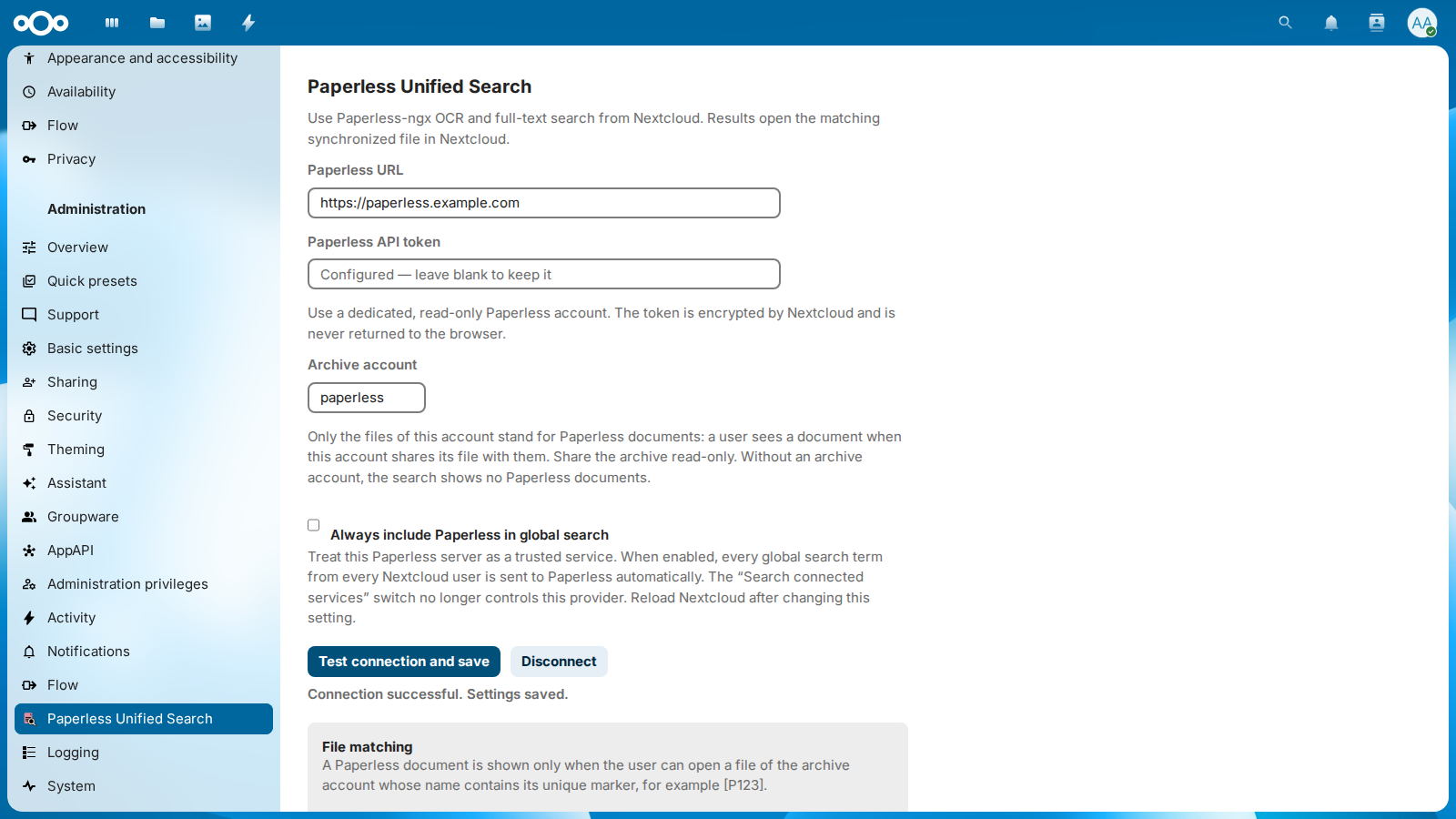
- In Nextcloud, open Administration settings → Paperless Unified Search.
- Enter the Paperless base URL and API token.
- When Nextcloud reaches Paperless at an address of your local network or by the name of its Docker service, such as
http://192.168.1.20:8000orhttp://paperless:8000, select Paperless runs in my local network (below). - Under Archive account, enter the Nextcloud account that owns the synchronized files, or leave it blank to use the account that Paperless Sync writes the archive with. The settings store the ID as Nextcloud spells it, whatever its case, and warn when the account doesn't exist.
- Optionally enable Always include Paperless in global search to treat the configured Paperless server as trusted.
- Select Test connection and save. Nextcloud asks for your password when you haven't confirmed it in the last 30 minutes, as for its own settings of this kind; so does Disconnect.
Leave the token blank to keep the stored one. The stored token goes only to the Paperless server it was saved for: when the URL names another server, with another scheme, host or port, the settings ask for the token again, so that the token never reaches a server it wasn't meant for. Another path on the same server keeps it. When Nextcloud can no longer decrypt the stored token, as after a move or a restore with another secret in config.php, the settings say so and ask for it again, and until then the search shows no Paperless documents.
The configuration is global. Access control remains user-specific because the app discards every Paperless hit for which the searching Nextcloud user can't open a matching file of the archive account. Share the archive read-only with the users who may see its documents. Without an archive account, the search shows no Paperless documents.
When Paperless documents are missing from the search, look at Search problems at the end of the settings, and for a document that Paperless finds but a user doesn't see, use Try a search below it: enter the term and the user ID, and it lists the first 20 documents that Paperless ranks for the term, each with its ID, its title and whether it shows to that user, or why not: Not shared with the user, Not a file of the archive account, or No file with its marker, such as [P412]. It asks the same questions as occ paperless_unified_search:search --explain, for administrators of a managed instance without a shell, and answers with the titles alone, without the content or the files of the documents. A failed search shows the users no Paperless documents and no error, and a request that fails before it reaches Paperless, as when the connection fails, is sent a second time before the search gives up; one that waited for a Paperless that hangs is not, so that a search never waits twice. The settings count both, the failed searches and the requests that only their second try answered, and list the latest 20 with the time, the step, asking Paperless or looking for the files in Nextcloud, the kind and the message of the error and how long it took, along with since when searches work again after the last failure. A query that Paperless refuses while it is still being typed isn't a problem and doesn't show up, and during an outage, also one that comes and goes, the problems of one kind are written at most once in 30 seconds, with those in between still counted. This helps where the hoster keeps the log of Nextcloud from administrators. Clear history and Disconnect forget the history; saving the settings keeps it.
By default, Nextcloud's search in the browser asks Paperless only after the user enables Search connected services, and the smart picker only after the user picks Paperless documents in it. When the trusted-service option is enabled, every global search term from every Nextcloud user is sent to Paperless automatically and the connected-services switch no longer controls this provider. Reload Nextcloud after changing this option.
Paperless in your local network
Nextcloud refuses to connect to addresses of the local network, such as 192.168.1.20, paperless.local or the name of a Docker service, so that no URL that someone enters can reach the services behind its firewall. Most Paperless servers run at exactly such an address. Select Paperless runs in my local network, and Nextcloud allows the address for the requests of this app to the Paperless URL of the settings, and for nothing else: those requests follow no redirect, and every other app keeps the protection. Without the switch, Test connection and save fails with a message that names it. Enter the address at which Paperless itself answers, such as https://paperless.example.com rather than http://paperless.example.com when a proxy redirects http to https: with the switch, Nextcloud follows no redirect, and a redirect makes the test of the connection fail.
Don't set allow_local_remote_servers in config.php for Paperless: it lifts the protection for every app and every URL that users can enter, such as link previews, webhooks and the servers of federated shares.
If you set allow_local_remote_servers in config.php for Paperless before, first select Paperless runs in my local network and save, and only then remove it from config.php. Otherwise the search shows no Paperless documents until the switch is saved.
flowchart TB
    accTitle: Which requests reach an address of the local network
    accDescr: A request of this app to the Paperless URL of the settings reaches an address of the local network when Paperless runs in my local network is selected, and then follows no redirect. Without the switch, Nextcloud refuses the address before any request leaves it, and saving says to select the switch. Requests of other apps keep Nextcloud's protection, unless allow_local_remote_servers in config.php lifts it for all of them.

    request(["A request to an address<br>of the local network"])
    ours{"From this app,<br>to the Paperless URL<br>of the settings?"}
    switch{"`**Paperless runs in<br>my local network**<br>selected?`"}
    allowed["Nextcloud connects,<br>without redirects"]
    refused["Nextcloud refuses it;<br>saving names<br>the switch"]
    others["Nextcloud refuses it,<br>as it always does"]

    request --> ours
    ours -- "yes" --> switch
    ours -- "no, another app" --> others
    switch -- "yes" --> allowed
    switch -- "no" --> refused

    classDef yes fill:#16a34a2e,stroke:#16a34a,stroke-width:2px
    classDef no fill:#dc26262e,stroke:#dc2626,stroke-width:2px
    class allowed yes
    class refused,others no
The URL may name a Docker service with an underscore, such as http://paperless_ngx:8000, an IPv6 address in brackets, such as http://[fd00::5]:8000, or an internationalized name, which the settings store in the ASCII form that DNS knows, such as https://xn--bcher-kva.example for https://bücher.example.
When the test of the connection fails
Test connection and save saves nothing until Paperless answers, and the message says what failed. Troubleshooting lists every message, with what to do about it.
Languages
The settings speak English and German: German with du for accounts set to Deutsch (Persönlich: Du), and with Sie for accounts set to Deutsch (Förmlich: Sie).
Share the archive read-only
The archive account decides who finds which document: a user sees a Paperless document when the archive account shares its file with them, alone or with a folder around it. Share read-only, so that nobody changes, moves or deletes a file that the synchronization writes.
- Sign in to Nextcloud as the archive account, such as
paperless, and open Files. - Open the details of the folder of the archive, such as Paperless, and there the tab Sharing.
-
Enter the user or the group, and set the share to View only.
-
A group gives every member the documents at once, also those who join it later.
- A subfolder, such as
Paperless/ACME, gives someone only the documents in it; Paperless Sync sorts the documents into folders by correspondent, type and year. - The archive account finds every document without a share. An administrator of Nextcloud finds only what is shared with them, as any user does: being an administrator opens no file.
A script shares through the OCS API of Nextcloud, with an app password of the archive account: shareType is 0 for a user and 1 for a group, and permissions=1 is read-only.
curl -u paperless -H 'OCS-APIRequest: true' \
  -d path=/Paperless -d shareType=1 -d shareWith=accounting -d permissions=1 \
  'https://cloud.example.com/ocs/v2.php/apps/files_sharing/api/v1/shares'
Works with any synchronization
The search needs one thing from a synchronization: each document of Paperless-ngx as a file of the archive account in Nextcloud, with the marker [P<ID>] of the document in the name of the file. Paperless Sync writes such files, with folders by correspondent, type and year, and so can any other way:
-
Let Paperless put the marker into its file names. The file name format of Paperless has the placeholder
{{ doc_pk }}, the ID of the document. In the environment of Paperless, such as itsdocker-compose.env:PAPERLESS_FILENAME_FORMAT={{ created_year }}/{{ correspondent }}/{{ title }} [P{{ doc_pk }}]Paperless then stores document 412 as
2026/ACME/Invoice [P412].pdf. Its commanddocument_renamerrenames the documents it already has, and each storage path of Paperless needs the marker as well. -
Copy the files to the archive account, one way, from Paperless to Nextcloud. The folder
media/documents/archiveof Paperless holds the PDFs with their recognized text,media/documents/originalsthe files as they came in.-
rclone, or another WebDAV client, on a timer or in a container next to Paperless, with an app password of the archive account
paperless:rclone config create nextcloud webdav vendor=nextcloud \ url=https://cloud.example.com/remote.php/dav/files/paperless/ \ user=paperless pass=app-password --obscure rclone sync /path/to/paperless/media/documents/archive nextcloud:Paperless -
The Nextcloud desktop client, signed in as the archive account, on a copy of the folder rather than the folder itself: it syncs both ways, and Paperless loses track of a file that is moved or deleted in its media folder.
- An external storage with the files, mounted for the archive account alone and shared from there. A mount can't be shared until Enable sharing is switched on in its options, behind the gear of the storage under External storage in the administration settings. Nextcloud's search finds only the files it has scanned, so let a timer run
occ files:scanfor the storage. On a storage mounted for every user, each user owns the files they see there, and such a file stands for no document.
-
-
Share the archive read-only with the users who may find its documents, and enter the archive account in the settings, as in the configuration.
Check that it works
- Sign in as a user with whom the archive is shared, or as the archive account.
- Open Nextcloud's search and search for a word from the text of a document, one that isn't in its file name.
- Switch on Search connected services: the document shows under Paperless documents, and selecting it opens its file.
No Paperless documents? Troubleshooting finds the cause step by step.