A shared display
A board display in the hallway, the club or the pub: a computer by the board, a screen that everyone reaches, and Chrome with Autodarts. This guide sets it up so that every player plays under their own account and a tap switches players, also in fullscreen and kiosk mode, and so that the display starts by itself and stays ready for days.
What you need
- A computer by the board with Google Chrome on Windows, macOS or Linux, or a Raspberry Pi with Raspberry Pi OS and its Chromium.
- A screen in reach of the players, best a touch screen; a mouse or a small wireless keyboard works too.
- An Autodarts account for every player, and a browser profile for the display: one of its own, not anyone's personal one. The extension keeps the accounts in that profile.
1. Save the players
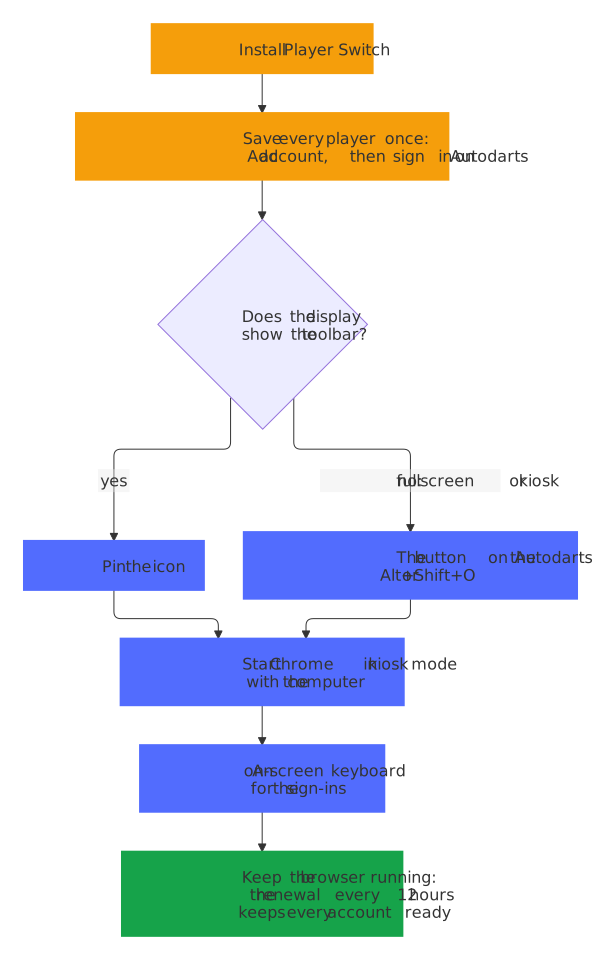
Install the extension from the Chrome Web Store, or unpacked as the quick start shows. A welcome page opens with three steps: pin the icon, sign in the first player, and add the next ones. Set it up on the home page shows them.
Each player signs in once: choose Add account, and the next sign-in on Autodarts is saved by itself. Save every player before you turn on kiosk mode, while the keyboard and the toolbar are at hand; Add account in the players on the Autodarts page works in kiosk mode too.
2. Choose how players switch
- The icon in the toolbar, pinned, for a display that shows the browser as usual. A tap on it opens the players.
- The button on the Autodarts page, a round button in a corner with the picture of the player. A tap on it shows the players over the page, in large tiles for a touch screen. In fullscreen and kiosk mode, it is the way to switch. Settings in the popup moves it to the corner where it covers nothing that you need on Autodarts, or turns it off.
- The keyboard: Alt+Shift+O opens and closes the players on the page, the keys 1 to 9 pick a player, and Esc closes them. Change the shortcut under
chrome://extensions/shortcuts.
3. Fullscreen or kiosk mode
Fullscreen hides the toolbar and the tabs: F11 on Windows and Linux, Control+Command+F on a Mac, and the same keys leave it again.
Kiosk mode starts Chrome on one page, without the address bar, tabs or menus, and nobody at the display can leave it by accident. Start it with this command, on Windows with the full path of Chrome:
"C:\Program Files\Google\Chrome\Application\chrome.exe" --kiosk https://play.autodarts.com
On a Raspberry Pi, the command is chromium --kiosk https://play.autodarts.com; on Raspberry Pi OS Bookworm and older, Chromium is chromium-browser. Alt+F4 ends kiosk mode.
- Close every Chrome window first. A Chrome that runs already opens a normal window and ignores
--kiosk. - The profile of the display: with more than one Chrome profile on the computer, add
--profile-directory="Profile 1"with the name of its folder, whichchrome://versionshows as the last part of the Profile path. - No incognito, no guest: never add
--incognitoor--guest. Chrome runs no extension in a guest window, and the saved accounts belong to the normal profile.
4. Start with the computer
Windows
- Press Win+R, type
shell:startupand press Enter: the folder of the programs that start when this Windows user signs in opens. - Right-click in it, choose New → Shortcut, and enter the command of kiosk mode above as its location.
- Name it, such as Autodarts, and choose Finish.
Chrome then starts in kiosk mode each time this user signs in. A display that should come back by itself after a power cut also needs a Windows user that signs in without a password prompt.
Raspberry Pi OS
Create the file ~/.config/autostart/autodarts.desktop with these lines; the desktop starts it each time it starts, on Raspberry Pi OS with Wayland as with X11:
[Desktop Entry]
Type=Application
Name=Autodarts
Exec=chromium --kiosk https://play.autodarts.com
On Raspberry Pi OS Bookworm and older, write chromium-browser in place of chromium. Auto login, under Raspberry Pi Configuration → System, signs in to the desktop by itself, so the display comes back after a power cut.
5. Type on a touch screen
Only the sign-ins need a keyboard: once per player, and again only when a tile says Sign in again.
- Windows 11: under Settings → Time & language → Typing → Touch keyboard, let Windows show the touch keyboard when no keyboard is attached; it then opens as soon as you tap a field.
- Raspberry Pi OS brings an on-screen keyboard for a touch screen, which Raspberry Pi Configuration turns on and off.
- Or a small wireless keyboard, put away again after the sign-ins.
When Chrome offers to save a password on the display, choose Never: the extension needs no password, and anyone at the display could use a saved one. After a sign-in with Google or Apple, sign out of Google or Apple in this browser again; the help says why.
6. Keep it ready
The extension renews every parked session every 12 hours, while the browser runs. While the computer sleeps, no renewal runs, and Chrome runs the one that was due as the computer wakes; after the computer was off, the extension renews straight away as the browser starts. How long a session lasts without a renewal is up to Autodarts.
- A display that runs every day needs nothing more.
- A display that is off for days, such as at a club that plays once a week: turn it on now and then in between, or let the accounts with an Autodarts password remember it, so that they sign in again by themselves. Any other account that has to sign in again shows Sign in again, and the help says what to do.
- The screen may turn off whenever it likes: the renewal needs only the computer and the browser. Set the power options of Windows so that the computer doesn't sleep while it is plugged in, and let only the screen turn off. A Raspberry Pi doesn't sleep; Screen Blanking under Raspberry Pi Configuration → Display only turns the screen off.
7. Before the first evening
- A tap on each tile switches to that player, and Manage accounts shows no Sign in again.
- The button on the Autodarts page sits in a corner where it covers nothing that you need.
- Chrome saves no password on this display, and nobody is still signed in to Google or Apple in it.
- After a restart of the computer, Chrome comes back by itself, in kiosk mode on Autodarts.
- The computer doesn't sleep, or it wakes often enough for the renewal.
- Everyone knows the rule: change players with a tile, never with a sign-out on Autodarts, which ends a session for good.
Not working as it should? The help explains every message of the extension.